
Almost everyone who has a smartphone uses Instagram at this age and time. It is one of the most consumed digital content platforms that keeps viewers entertained. However, one needs a working internet connection to keep watching those reels and videos. How about you can access them offline and watch videos even without any internet connection?
Read this guide till the end to learn different ways to save the media to your device for offline watching. You will learn about VideoSaver, which is one of the reliable ways that lets users perform hassle-free downloads.
Saving a Post or Downloading a Video
It is important to learn the difference between saving a post and downloading a video. The Save option on the platform is like a bookmark. You can access the post to watch for later, but you need an internet connection for it. Moreover, it stays in the Saved section of your profile and does not become available on your device.
The download process is something different. Users can download a copy of the video or reel to their device. It can be watched offline without opening the application.
Why Save Videos Offline?
People save the videos from the social platform for many different reasons. The algorithm of the platform moves very fast. The video you are watching today can be difficult to find tomorrow. This is why people save them to their devices so that they can watch them later without using the internet or the app. Users do not have to worry that the creator might delete it or change their account settings when they have offline access to the media on their device.
Different Ways to Save Content Offline
There are more than one method to save the videos like reels, stories, and highlights offline. The option one chooses depends on the device they use and how frequently they download the videos. Mentioned below are some of the top ways to save videos from this famous social media platform:
| Video Download Methods Comparison | |||
|---|---|---|---|
| Method | Best For | Advantages | Limitations |
| Online Video Downloader | The method is good for quick downloads on desktop and mobile phones | You don't require any installation, and it is easy to use | An internet connection and a browser are necessary for this |
| Mobile Apps | The apps are perfect if you perform frequent downloads | You can use the app from anywhere and download the video | It needs installation and careful permission checks |
| Browser Extensions | This works best for desktop users | Extensions provide quick access, and you do not need to open the downloader | Browser performance and privacy are affected by this method |
| Screen Recording | The utility is good when no other option is available | This method works irrespective of the device | The quality is not as good as the downloaded versions |
Save Instagram Videos and Reels on Your Smartphone
Smartphone users have multiple methods to download their favorite content to their devices. They can use the VideoSaver app as well as the online version to make the media available on their phone. The application allows you to save the video to your phone’s gallery in no time.
Download Video on Android with the VideoSaver App
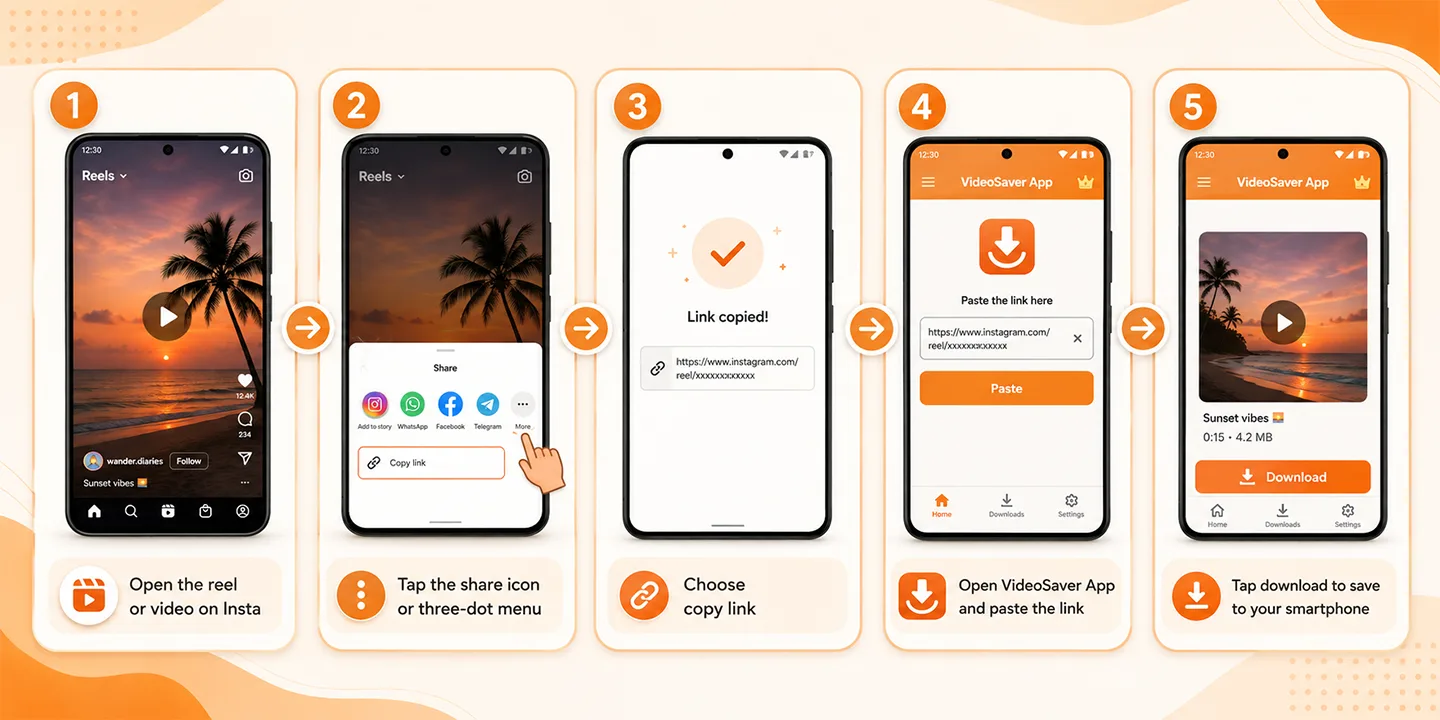
The video can become available on your Android device by using the application. Here is how you can do it:
- Open the reel or video that you want to download on Insta.
- Now tap on the Share icon or the three-dot menu.
- Choose the Copy Link option located within the interface.
- Next, open the VideoSaver app and paste the copied link into the designated field.
- Hit the download button to save the video to your smartphone.
Save Videos on iOS (With Safari Browser)
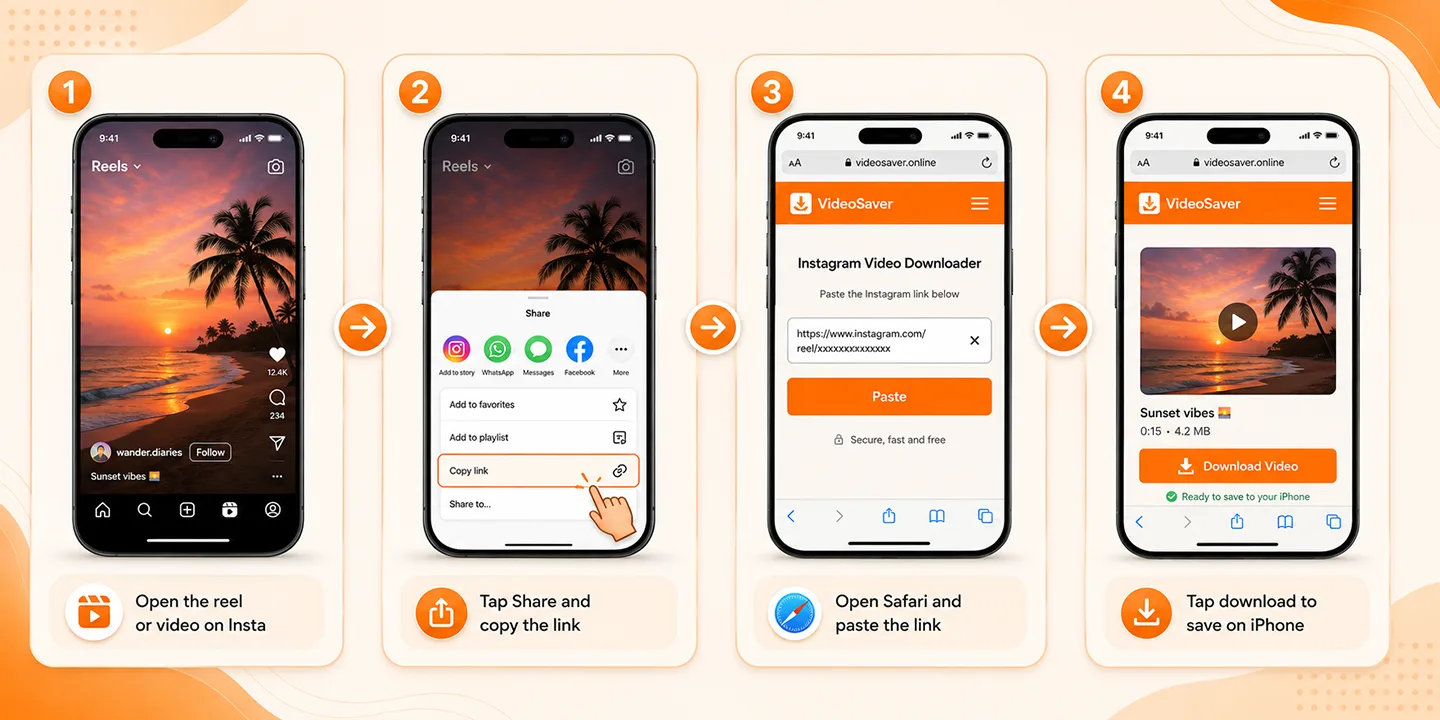
The video saving process for iOS users is also quite simple. Although the VideoSaver app is not available for iPhone. The online version can be used on a browser like Safari. iPhone users have to simply copy the link from Instagram and paste it into the designated field of VideoSaver opened on Safari Browser. The media will be saved to your device’s storage in no time.
Download Instagram Videos on Windows or Mac device
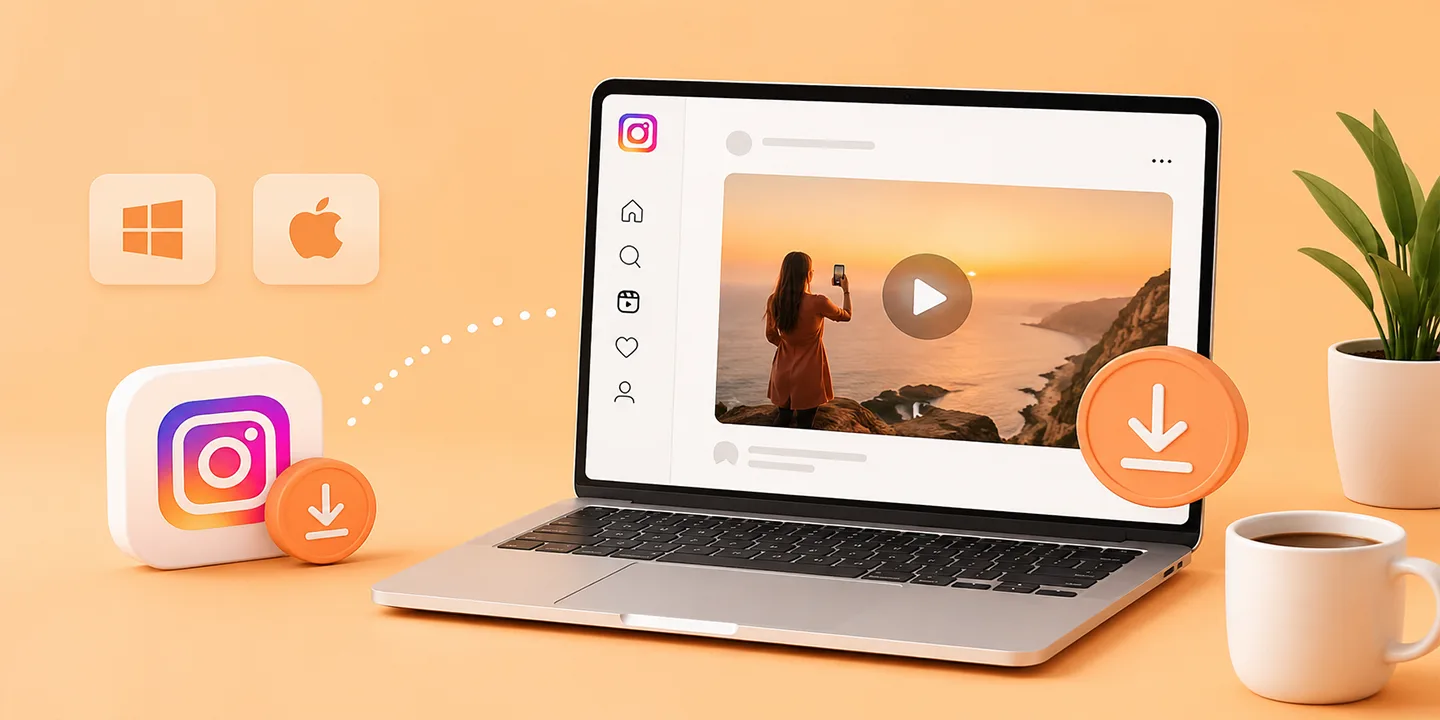
You can access the videos from the social platform on your desktop device with or without signing in to your Instagram account. VideoSaver provides an online tool and a browser extension to make the media available on your computer.
Save Videos on Computer With Online Video Downloader
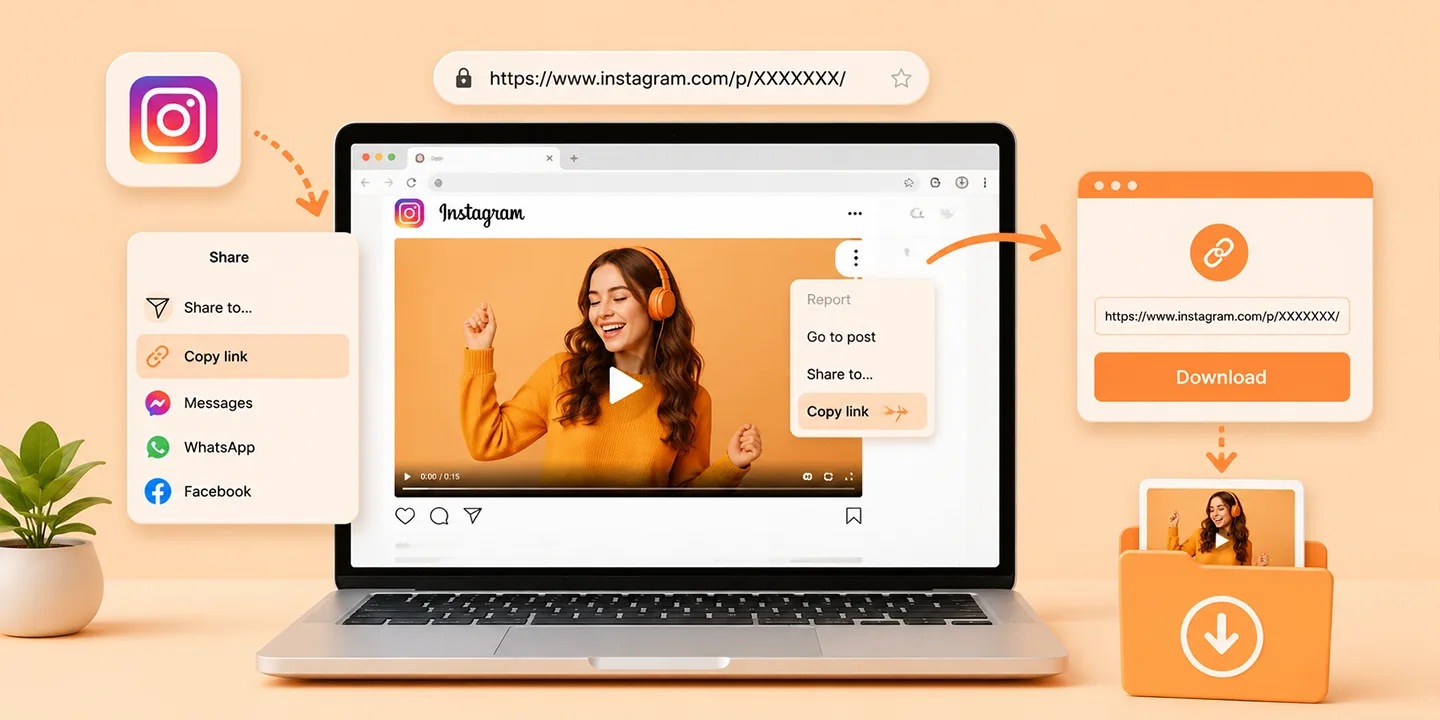
VideoSaver’s online tool allows users to save their favorite videos from their computer’s browser, no matter if it is a Mac device or a Windows one. You can access the tool on any browser and save the content to your desktop. Here is a simple guide on how to perform the download:
- Open your web browser on your computer and access the Instagram website. Now open the video with or without logging in to your account.
- Click on the three-dot icon or the Share icon to select the Copy link option. You can also copy the link by simply choosing the link from the address bar.
- Access the VideoSaver tool in another tab and paste the copied link into the designated box. Click on the Download button to save the video or reel successfully to your desktop.
Download Videos on Computer With Browser Extension
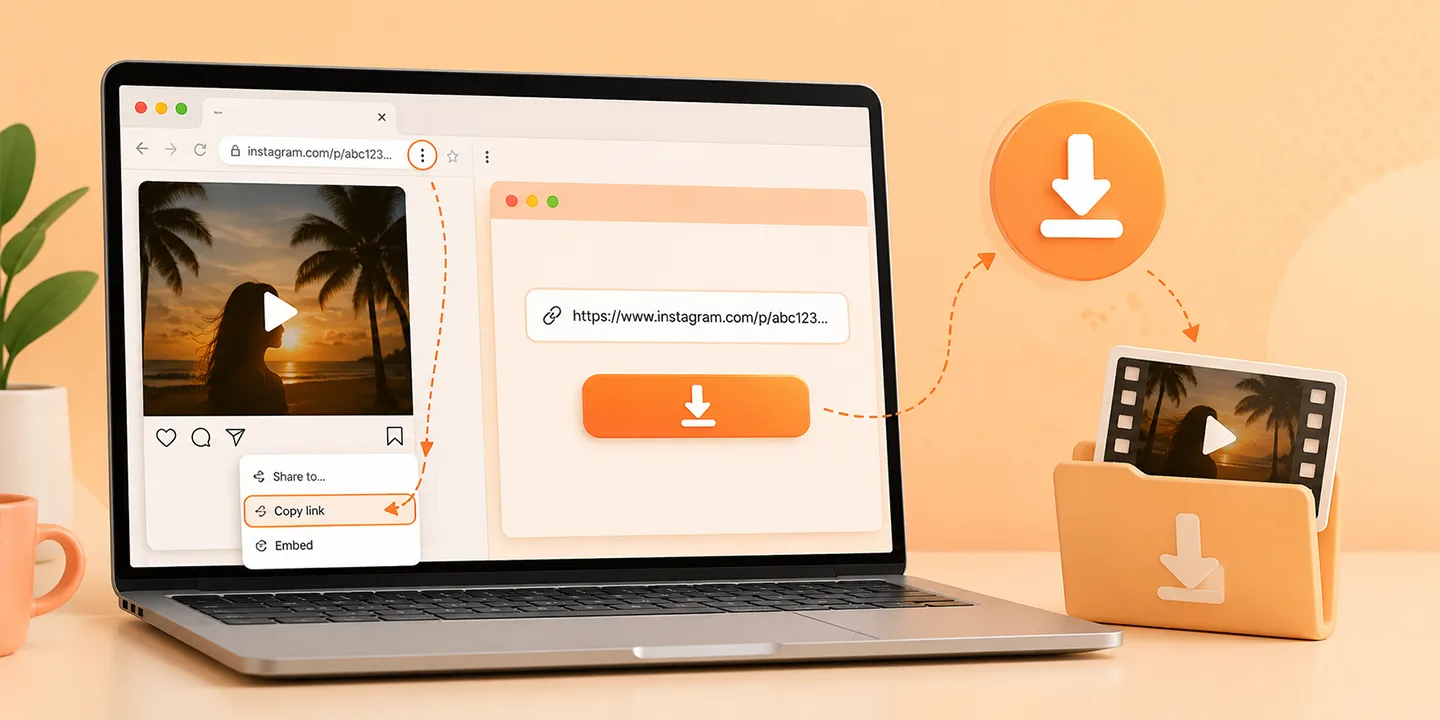
VideoSaver also provides a browser extension to save the videos from your computer’s browser. You do not have to open the website every time. Simply enable the extension and download your selected video in no time.
Save Instagram Video with Screen Recorder
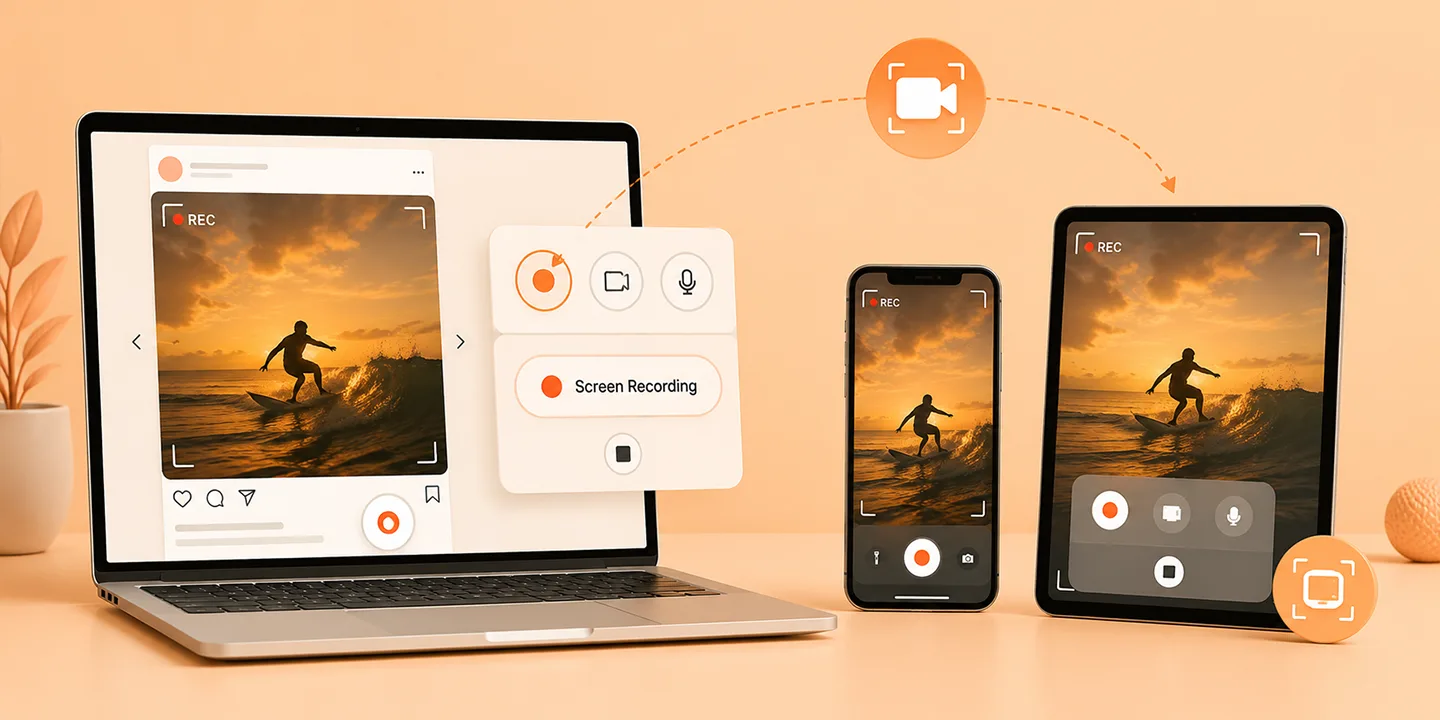
This method is useful if you cannot copy the link of the video for downloading. This happens when the Insta profile is private but you are following them. The video is visible to the follower however, the link will not open on other downloaders. You can use the screen recording option for this. However, one must make sure to not infringe the copyright or privacy policies. Here is how to perform screen recording on different devices:
Android
Start by swiping down twice from the home screen. Tap on the Screen Recorder icon and play the video in the social app. Tap on the Stop icon once the video is completed. The recorded media will be saved to your device.
iOS
Open the Control Center and turn on the Screen Recording option. Swipe down the top right corner of the screen and select the Recording icon. The utility will start recording the video that is being played on Instagram.
Mac
Open the video on the browser of your Mac device and enter the Command + Shift + 5 keys on the keyboard. This will begin the recording on your PC. Press the Stop button once the recording is completed.
Windows
Start by accessing the Game Bar by clicking on the Windows + G keys. Click the Record button and wait until the video is completed. Stop the recording and watch the video being saved to your computer.
Download Instagram Videos in Bulk
The standard flow of VideoSaver is one video at a time. However, you can download Instagram videos in batch from a single creator using the following workflow:
Method 1. Download in Sequence
Start by opening the profile and copy each video link one at a time. Download each video in sequence by pasting the link one at a time to theVideoSaver interface. The downloader processes quickly so you can complete multiple downloads in a few minutes.
Method 2. Use VideoSaver in Multiple Tabs
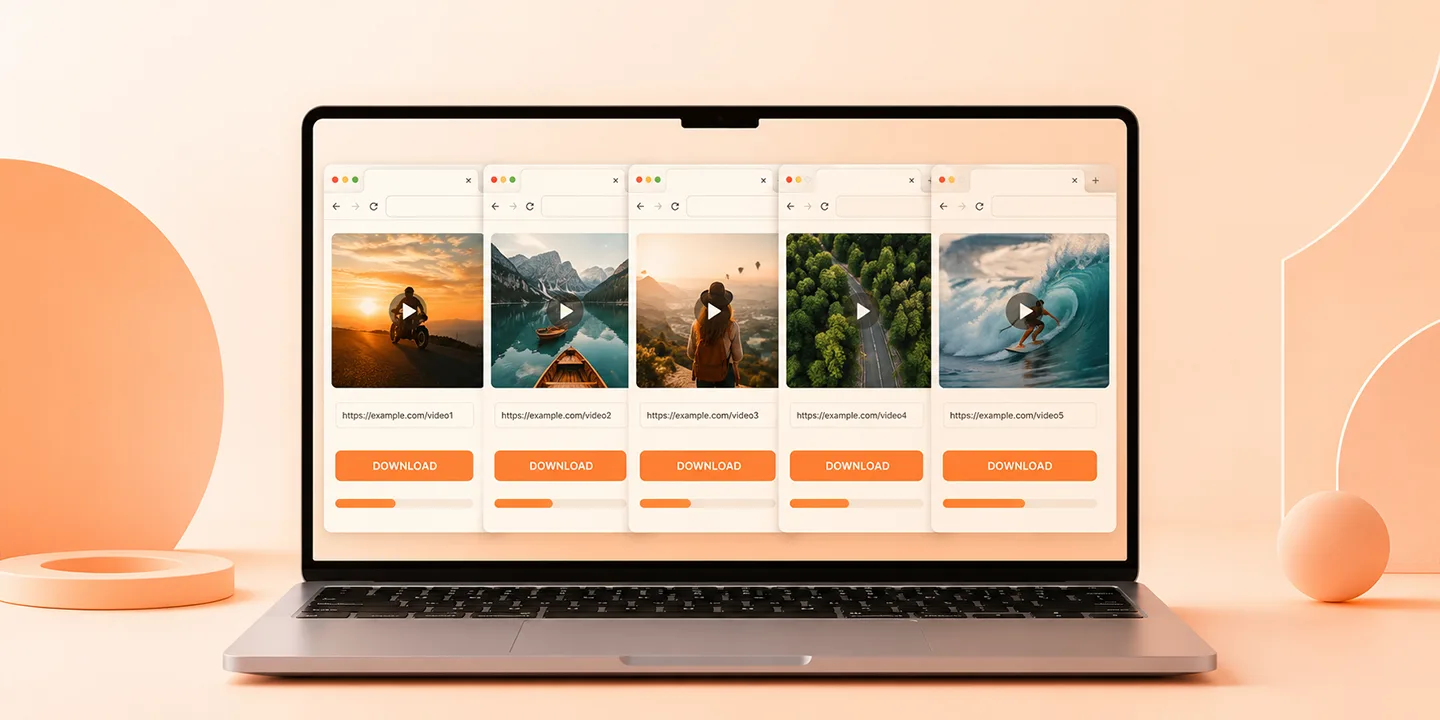
Open the downloader in multiple tabs on your browser and copy the links for different videos. Now paste the links in each tab and press the Download button. Most browsers handle 5-6 video downloads simultaneously.
Troubleshoot Methods when Video Is Not Downloading
Many users face some of the issues when they are trying to save a video to their device from Instagram. These could be hardware issues or any other problem. Mentioned next are some of the problems users face along with their solutions:
Problem: Blank Result or Video Not Found
Solutions: One of the quickest solutions is to check if the profile is public or not. Video downloaders cannot access the content from private videos. Also make sure you have copied the complete link and have missed any part. Another method is to open Instagram in any other browser as sometimes the browser stops working due to a temporary glitch.
Problem: Download Button Does Nothing
Solutions: make sure the ad blockers are disabled on your browser to let the downloader work smoothly. Another solution is to clear up the cache of your browser. Once it is done, then reload the VideoSaver to resume the process.
Problem: Invalid or Expired Link
Solution: The link of the Insta stories expires after 24 hours. Make sure to download the story within the same time frame.
Problem: Downloaded Video Does Not Play
Solutions: This issue can occur if the download process is interrupted. Try the download process again with a stable internet. Check if your device has enough storage or not. Another solution is to check whether the download file is in the correct format or not.
Instagram Video Downloads: Formats and Quality Support
Users get various quality and format options when they paste the video link to VideoSaver's interface. It allows users to download videos in formats like MP4 and M4A. It also provides audio downloads in MP3 format. The quality options are up to 1080p for clear and crisp visual results. However, if the quality of the original video is already low, the download video will also appear a little pixelated.
Things to Consider When Saving Videos From Instagram
Whether it is a helpful tutorial or a famous recipe, saving videos can be useful when one wants to watch their favorite content later. However, there are a few things to keep in mind before downloading these videos through any means. Read them below:
Copyright and Content Ownership
The videos on the platform are protected by copyright. It does not give ownership of the video if you download it. You should not edit or reuse someone else’s content for commercial purposes. Give proper credit to the owner if you post the video somewhere.
Privacy Concerns
Always respect the privacy of the person who created or shared the video. Avoid downloading or sharing someone's content without their permission. It is best to take the creator’s consent first if the video contains private information or was shared in private profile settings.
The Intention of Your Use
Think about why you are downloading this video. Using it for personal or entertainment purposes is fine. But if you download it for posting on your profile or for marketing purposes, then make sure you have permission from the owner.
Choose a Reliable Download Method
Select the method to save the Insta video that is trusted. Avoid methods that require unnecessary information. Choose downloaders like VideoSaver that offer 100% security.
Want to save your favorite Instagram videos, reels, and stories in just a few clicks? VideoSaver offers quick high quality download from public Instagram accounts. You get a hassle-free process in simple few steps. Try VideoSaver today and save the content you want to watch anytime.
Questions People Ask
What format are the Insta videos in?
They are saved in the MP4 format. As this is the file type which is widely used and can be played on almost all types of devices.
Can I only download the audio from the video?
VideoSaver provides the ability to download audio only along with the video downloads. You simply have to select the audio option after pasting the video link and the audio will be downloaded when you press Download.
Is it possible to rename a downloaded video?
You can save the video in your device with the name of your choice. The media can also be renamed after it is downloaded and saved.
Is it safe to use a video downloader?
Not all video savers provide safety. However, VideoSaver is an incredible platform that offers 100% safety for its users.
Can I download video directly to an external drive?
You can choose the location of the video to be downloaded according to your preferences. The saved media can also be moved to the external device.
Do videos save with the right click option?
The option does not work for Instagram videos. You need a proper video download method to save the media for offline access.
Can I download stories and highlights from Instagram?
You can save the stories if they are public and within 24 hours of it being published. However, the highlights of a public account can be saved whenever you want by simply pasting the link to VideoSaver.
Final Thoughts
The article discussed various methods on how to download Instagram videos. You learned to save the media on your smartphones as well as your computer. However, one of the easiest and safest methods is to use VideoSaver. The app, online tool and browser extension of VideoSaver let you save the media in just a few clicks.VideoSaver isn't limited to Instagram alone. If you enjoy content across different apps, you can use the same simple process to download videos from Facebook, YouTube, TikTok, Twitter, and Snapchat.