

Snapchat users know the fact it is introduced for temporary sharing, but not every video needs to disappear after being viewed. Whether you want to save your own content, archive a friend’s video or download a viral public Spotlight video. You often need a permanent copy for this purpose.
The best method depends on the source from which the video comes and whether you own it. For your own content, Snapchat gives several built-in ways. Videos created by other people are different. Snapchat limits how users can save others' content. Most of the time it notifies the creator about the download.
As of 2026, Snapchat has advanced, and so have the methods to save the content. This complete guide will take you through every working way to download Snapchat videos on iPhone, Android, and PC and common problems related to downloading. Go to our Snapchat Video Downloader to know more details about the available Snapchat content download quality, formats, and features.
The Best Snapchat Video Download Ways At a Glance
| Situation | Recommended Method | Quality | Best For |
|---|---|---|---|
| New video you created | Save to Camera Roll | Original Saved Copy | Everyday Use |
| Your Snapchat Story | Save the Story | High | Saving a Complete Story |
| Individual Memory | Export from Memories | High | A Few Existing Videos |
| Large Memories Archive | My Data to Memories | Best for Backups | Bulk Downloads |
| Your Spotlight post | Snapchat's Download Option | High | Your Polished Content |
| You Snap Map/Public Post | Save from Snapchat | High | Your own Public Content |
| Video sent by another | Save in Chat when Available | High | Videos that Support Saving |
| Other Person's Story | Screen Recording with Permission | Screen recorded copy | Personal Reference |
| Public Video Without Official Download Button | Third-party Downloader | Varies | Public Content Only with Caution |
Save Snapchat Videos Directly to Your Camera Roll
The regular user of Snapchat can save the content without any hassle every time. The easiest solution is to configure Snapchat so your saved Snaps go to your Phone as well as Memories.
On iPhone or Android
- First of all open Snapchat.
- Then tap your Profile icon.
- Open Settings.
- Now open Memories.
- Tap the Save Button.
Snapchat provides three save destinations that include:
- Memories
- Memories & Camera Roll
- Camera Roll
When you choose Memories and Camera Roll, a video saved using the Snapchat save button is retained in Memories and copied to your phone camera roll.
This method is particularly best for creators, social media managers, and anyone who plans to reuse the video on Instagram, TikTok, and other platforms. Instead of exporting your file later, create a local copy at the time you save the snap.
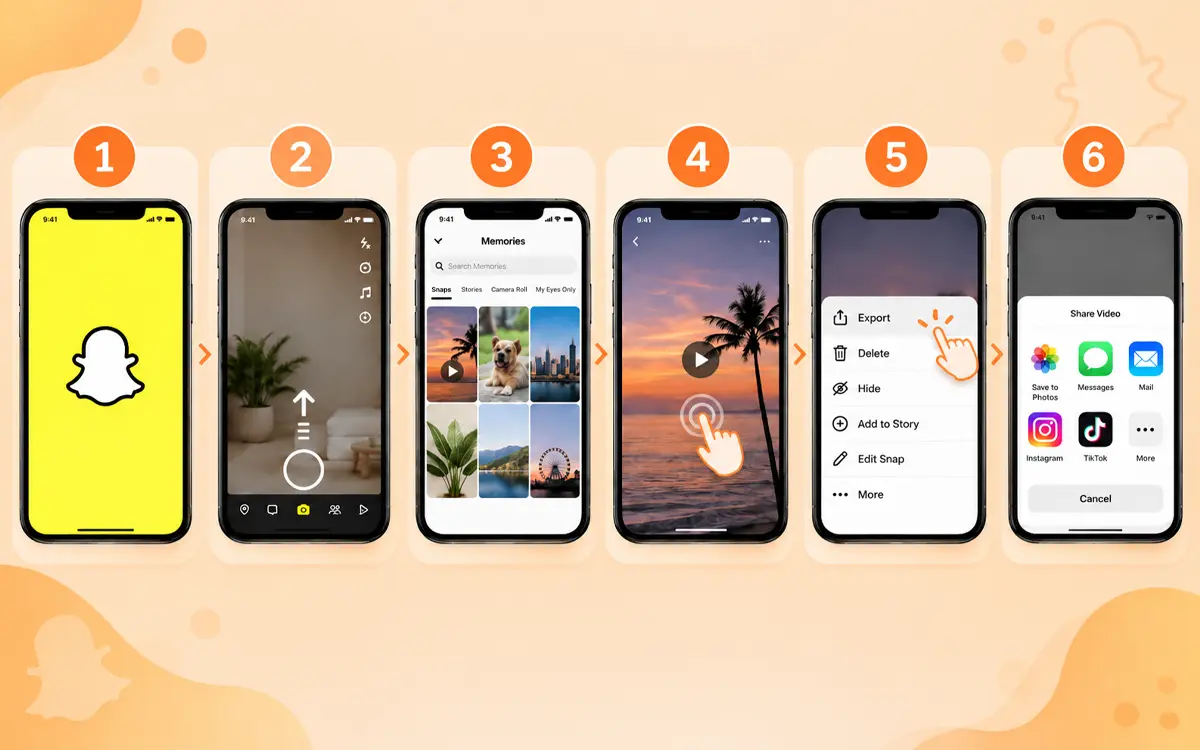
Download a Single Video From Snapchat Memories
If the video is already there in Memories, you do not need to use a third party downloader. Snapchat provides a direct option.
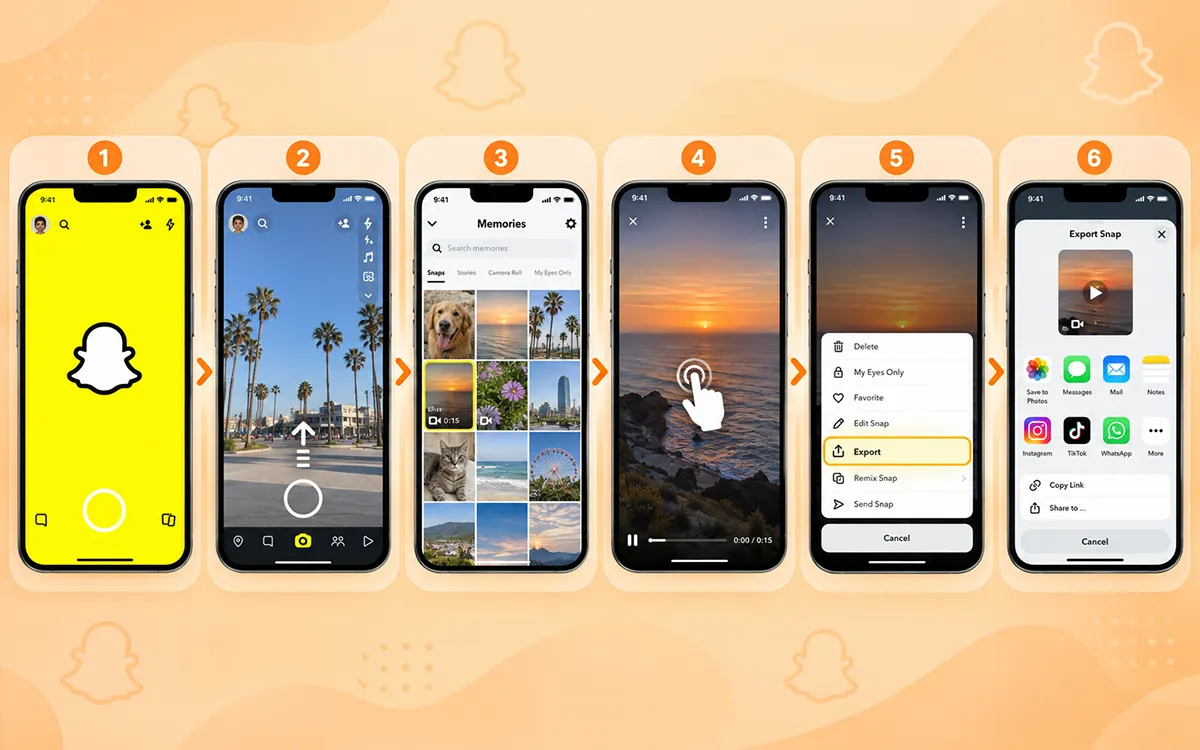
Follow the steps.
- First of all, open Snapchat.
- Swipe up from the camera screen to open Memories.
- Find the video you want to save.
- Press and hold the snap.
- Then tap Export.
- Choose where you want to save or send the video.
Snapchat allows the users to select and export multiple memories at once. This is useful when you have several files to move to your phone or other destination.
Download Your Entire Snapchat Story
Snapchat Stories are temporary media. It stays there for 24 hours and then vanish. It is a good habit to save important stories before the removal. If you created the story yourself, Snapchat allows you to save the whole story.
Save Your Complete Story
- Open your Snapchat profile.
- Then find My Story.
- Now tap the download icon beside the story.
- Snapchat saves the story to your available destination.
The current support documentation of Snapchat confirms that creators can download an entire Story. Someone who is merely part of another person's story can save only the part they contributed to.
Save Only One Story Snap
If you do not need the complete story.
- Open your profile.
- Then find your story.
- Open the specific Snap.
- Now tap the download button.
This method is useful when the story consists of several clips, but you need only one video.
You Need to Save Before It Expires
Stories disappear after their normal period for which they are available. If you save the content before it fades. You do not have to rely on any recovery methods later. The creators can save the stories to make a useful archive for future editing and repurposing.
Download Snapchat Memories in Bulk
Downloading the cluster of videos manually is easy. But managing hundreds or thousands is a different thing. Snapchat’s My Data feature is the perfect solution for a large personal archive. The current Snapchat system includes a true Memories-only export. It saves you time and gets you what you want to keep.
Process to Request a Memories-Only Export
Head over to the Accounts portal and log in to your Snapchat account.
- Click on My Data.
- Enable Export your Memories under the data selection part.
- Further choose Request Only Memories.
- Select the data range.
- Confirm the email address.
- Now submit the request.
- Wait for Snapchat to prepare the export.
- Download the ZIP file when it is available.
- Extract the ZIP file.
- Open index.html in a browser.
- From the menu now select Memories.
- Download individual memories or all of them.
The above are Snapchat's current instructions.
How long does it take to export Snapchat's Memories?
There is no universal processing time. Snapchat says that the processing depends on different factors. Such as the amount of data requested and the selected data range. Usually, it takes seven days to deliver your data, although big files may take a bit longer. The older guides suggest that the export will be completed within a few hours, most probably in 24 hours.
While the export process, if you face difficulty with a large data export then Snapchat suggests you to use a computer. A desktop browser also makes it easier to extract huge ZIP files. It helps to archive and manage hundreds or thousands of files.
Save Spotlight Videos of Snapchat
The way Spotlight works is different from private Snaps and Stories. Some Spotlight videos include an embedded download option.
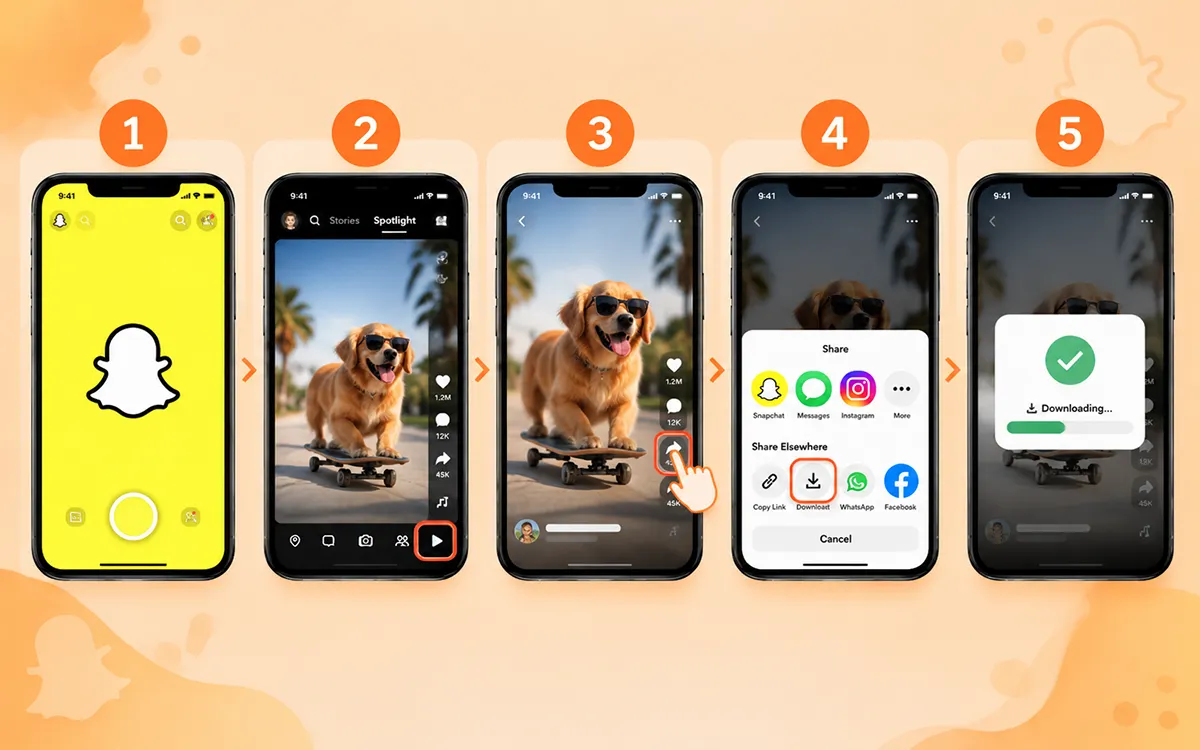
- Open Snapchat as a first step.
- Go to Spotlight.
- Open the video.
- Now tap Share.
- Look under Share Elsewhere.
- When you see the option, tap Download.
The thing to keep in mind is that availability can vary by content and Snapchat’s current design. If it gives you an internal download option, use it instead of an external downloader.
Download Snapchat Spotlight or Public Post That is Yours
If you are a person who is the owner of the video, Snapchat gives you other ways to manage your posts. The current web support information says you can use profile.snapchat.com, open My Posts, select a post under My Story or Spotlight Snaps, and choose Download. This feature can be useful when you are managing the content from a computer instead of your phone.
Save a Video You Receive in Chat
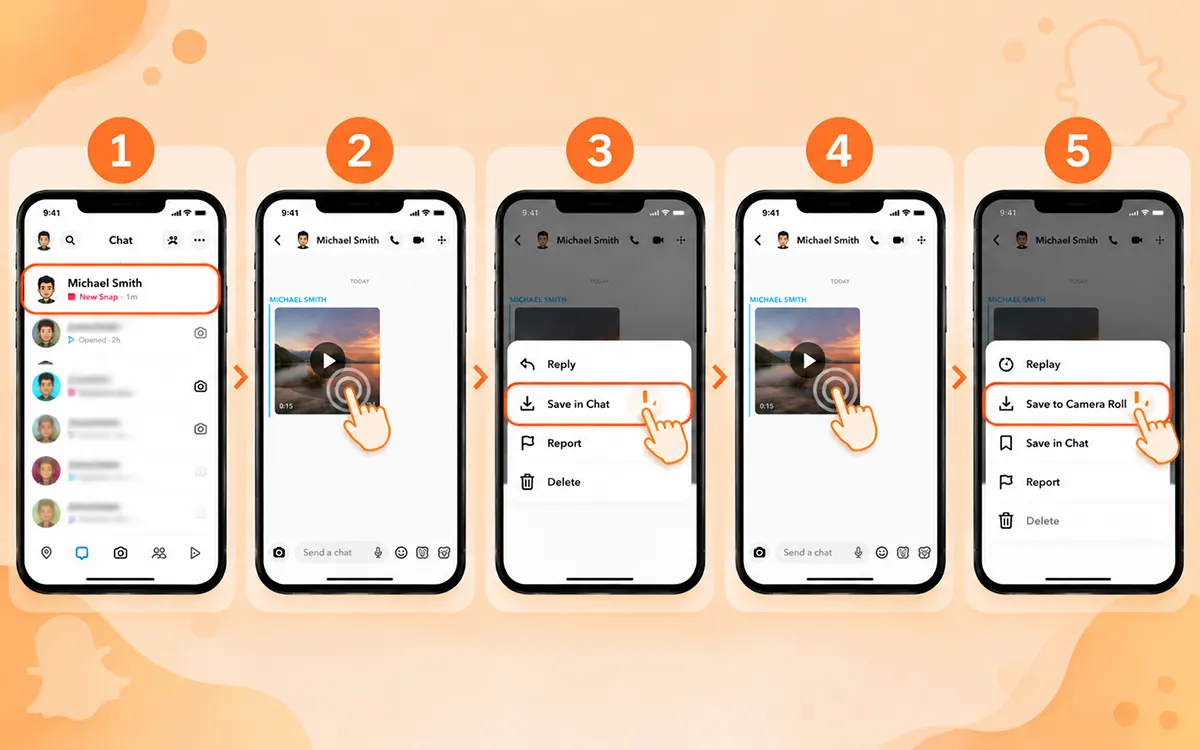
You can save some snaps from your chat because not every snap has the same restriction. This is for the snaps that are without an expiration period. When Snapchat makes the option available you may be able to download a video in Chat and then save it to your Camera Roll. The common workflow is.
- Open the conversation.
- Then press and hold the video.
- Now select the option to save in chat.
- Next press and hold the video again.
- And choose Save to camera roll when the resource is there.
The presence of these options depends on the Snap and what they are sent for. When Snapchat gives you an internal save option, it is a better option than screen recording.
How Screen Recording Works on Snapchat
This aspect is useful when Snapchat does not provide an export button for the content you can keep. It is more appropriate when someone has shared a video with you and allows you to save a copy.
On iPhone
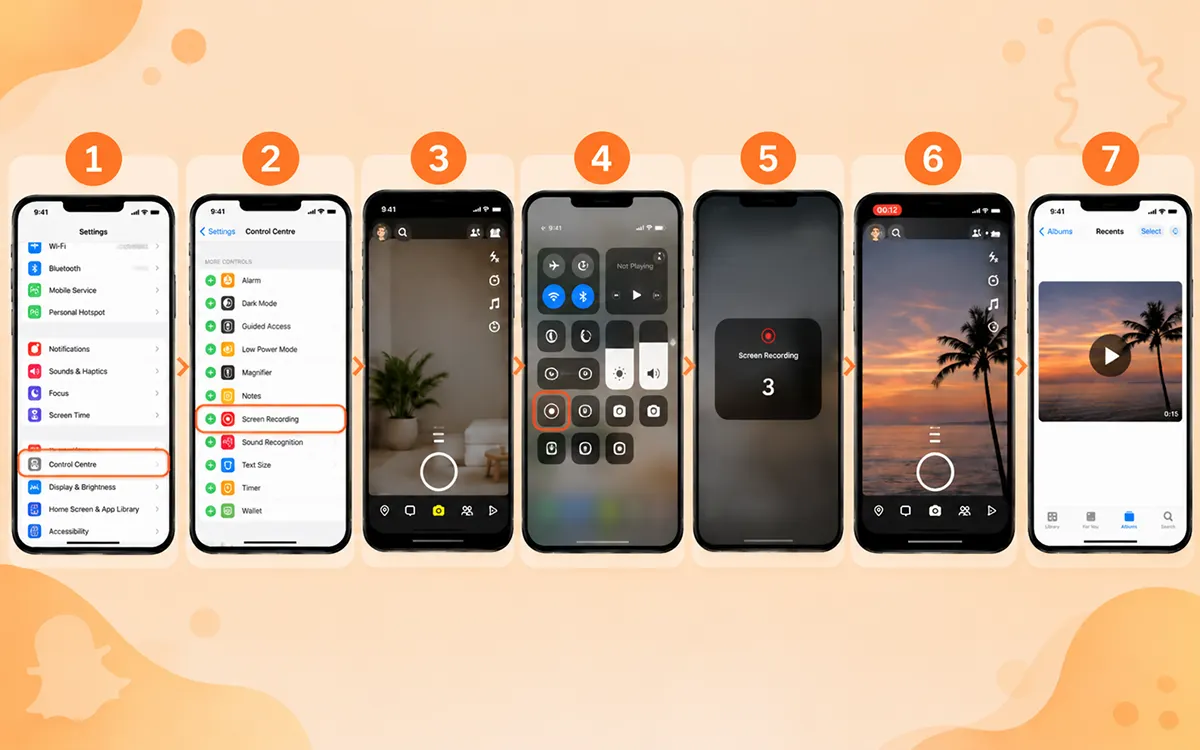
Open Settings and make sure screen recording is available in Control Center.
- Now open Snapchat.
- Go to the video.
- Open Control Center.
- Tap the Screen Recording button.
- Wait for the countdown.
- Play the video.
- Stop recording when the video finishes.
- Open the recording in the Photos app.
On Android
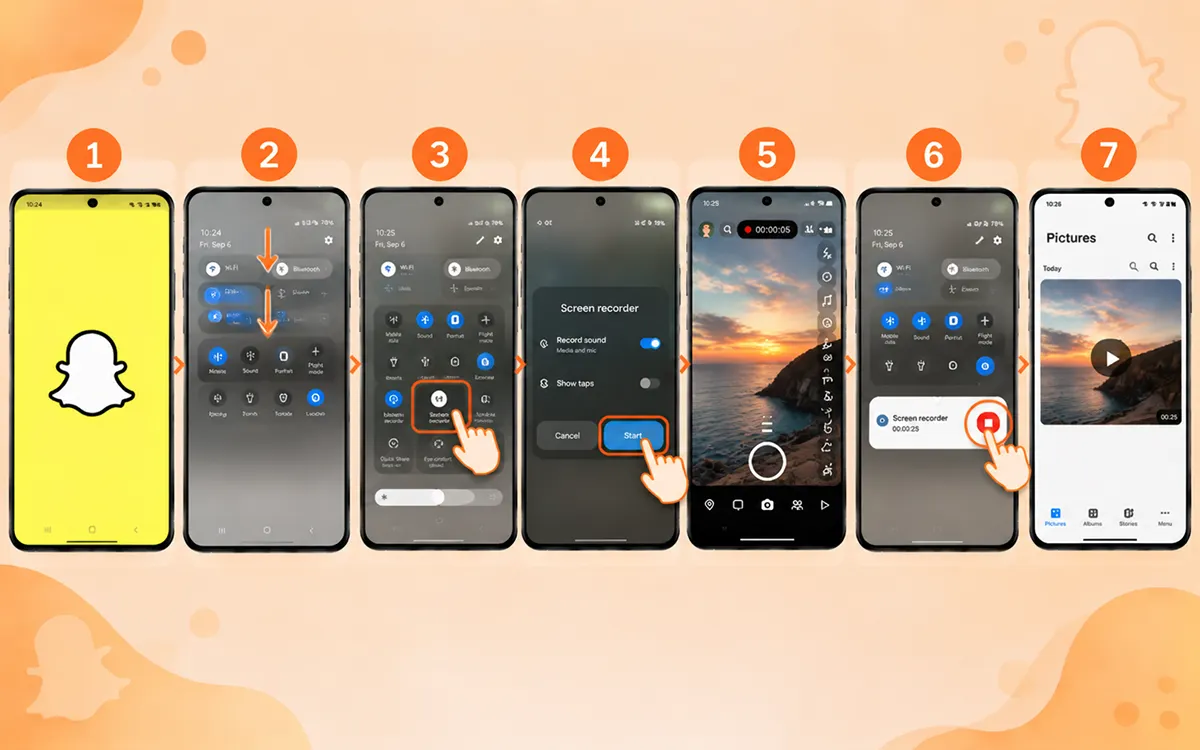
The exact interface varies by manufacturer. Generally the steps are.
- First open Snapchat.
- Swipe down to open Quick Settings.
- Now find Screen Recorder.
- Start the recording.
- Play the Snapchat video.
- Then stop recording.
- Find the recording in your Gallery or Photos app.
The exact controls can differ in Samsung, Google Pixel, Xiaomi, and other Android devices.
Cons of Screen Recording
The screen recording is not the same as the original download. It may:
- It may reduce effective quality.
- Capture parts of the app interface.
- Record notifications or other background sounds.
- May pick up accidental touches or movements.
- It changes the aspect ratio of video.
- Require some trimming or editing after the recording.
- Create a larger file or use a different encoding format.
This is why you should go for the native download option when available.
Snapchat Screenshot and Screen Recording Notifications
Privacy notifications are one of the most important things when you are saving someone else’s Snapchat content. Snapchat’s support documentation states that when Snap is saved in a certain Story, the person who posted it is notified through the screenshot indicator in their read receipts. Do not assume that screen recording someone’s content is invisible. If it belongs to someone else, ask for permission before making a copy.
Save Snapchat Video With Website Downloader
There are an abundance of reliable website downloaders like VideoSaver. The process is simple to follow.
- Open Snapchat and find the public video.
- Copy its available link.
- Now open the VideoSaver downloader website
- Paste the link.
- Let the site process the media.
- Now choose the available quality.
As a final step, click the download button to get the file on your device.
Things to Know
An online downloader only works if the service can access the media. It may fail when.
- The profile is private.
- The story has expired.
- The content requires authentication.
- The URL does not identify the actual media.
- Snapchat changes its infrastructure.
The downloader no longer supports the current Snapchat format.
Download with the VideoSaver app
The VideoSaver Android app is the fastest way to download the content on your phone. The steps are easy to follow.
- Open Snapchat and find the video you want to download.
- Copy the video's link by tapping the Share button.
- Now open the app on your phone and paste the copied link.
- Select the available video quality and press the Download icon.
Always keep in mind to avoid such apps that ask for your Snapchat login details or other personal information.
Browser Extension for Snapchat Video Download
VideoSaver gives you a Google extension to make your downloads quick and seamless.
- Install the extension.
- Open Snapchat web and sign in.
- Now open the video and right-click it.
- Now select Save video as
- This can be convenient for desktops. Before installing an extension, make sure to check the following.
- The identity of the developer.
- Permission requested.
- Number and quality of reviews.
- Update history.
- Whether the extension is still maintained.
- Make sure it does not request unnecessary access.
- The extension comes from the official browser store.
A tool that asks for access to every website you visit deserves more inquiry than one with less permission.
Which is Better for Snapchat Video Downloads—Mobile or Desktop?
Both phones and computers can be useful. For different needs or tasks, these devices can be used.
Mobile
The main limitation to using a phone is storage. A mobile phone is preferred when.
- You want to save individual videos.
- Exporting a few memories.
- Stories need to be downloaded.
- Screen recording of the content.
- Saving directly to Camera Roll.
- For quick sharing.
Desktop
Snapchat itself prefers to use a computer when you are looking for My Data downloads. A computer is preferable.
- For the export of large memories.
- ZIP archives.
- Organizing hundreds or thousands of files.
- Moving files to external storage.
- Editing a large collection.
- Want to maintain long-term backups.
Changes to Snapchat Memories Storage
Snapchat has now launched a Memories storage option for some users. The present support policies state that the new storage plans are not yet available to everyone. For users who get the new storage system, Snapchat identifies 5GB of free Memories storage with an additional storage option available when applicable. For the reason that local backups are becoming more useful for people.
What to Do When a Snapchat Download Fails
A failed download does not always mean that the content is inaccessible. Try the following ways if it fails.
Expired stories and deleted content may no longer be retrievable. Check whether the video is still available.
If the video is yours, check Memories and use Export. Always use a computer to make a large MyData export easier to handle. Your computer or phone may not have enough storage. Snapchat recommends using a different browser if you are facing problems with data export. Videos that are large can fail or take longer to download if the connection is not stable. Make sure you have a good internet connection. You should start by requesting a smaller data range.
What to Know About Deleted Snapchat Videos
Keep in mind that Snapchat cannot be treated as an unlimited recovery system. Snapchat says that the content deleted, viewed, or expired may be removed from its servers according to its storage span rules. Some snaps, chats, or memories cannot be recovered. You should save important videos on time before they are removed or keep another copy of valuable files.
Download Without Watermark
A third-party tool such as VideoSaver allows the user to download the content without any watermark or logo. Keep in mind that removing a watermark is different from improving the quality of video. A video free of watermarks can still be compressed, cropped, or upscaled. If the video is yours, then keeping the original camera file is the best option.
Think About Privacy Before Sharing Content of Others
There is a prominent difference between being able to download the file and reuse it on other platforms. A video being publicly visible does not mean you have the right to repost or sell it, use it in advertising, or upload it on other platforms. You are not allowed to edit it for business use or claim it as your own.
If you want to reuse it, the best way is to get permission from the owner. The security is even stronger if the snap is stronger.
Copyright and Commercial Reuse
You do not get copyright ownership if you download the file. If the content is copyrighted, then avoid using it for commercial use without the consent of the owner. The legal rules can be different by country and by the circumstances. If you plan to use it commercially, then seek permission. This is particularly important for:
- Advertisement and sponsored content.
- Monetized content.
- Company social accounts.
- Promotional campaigns.
- Compilations and client work.
Snapchat Video Download Methods to Avoid
If you want a secure and safe download of the content, make sure to use a reliable method. Avoid the tools that ask for your Snapchat password, payment details for free downloads, or any website that ensures the download is anonymous. Do not trust those browser extensions that ask for excessive permissions. Those tools can be harmful, asking to open random APK files from unverified sources. The service that claims every Snapchat video will be in 4K quality can be a bluff only.
- Services claim every Snapchat video in 4K quality.
- Tools that ask for payment details for free downloads.
Answers to Your Questions
What to do if I can’t find the downloaded video in my gallery?
You need to check your camera roll/Photos permission and the destination selected by Snapchat. Check the Downloads folder or the Gallery’s video section on Android.
What to do if my memories are not showing up in the export?
Make sure the memories have finished the backup process. Also ensure you have selected the right Memories export option. Larger exports take longer to prepare.
What if my data ZIP file is huge?
That is totally normal when you are dealing with heavy digital archives. Use a computer and unpack the ZIP file locally. Work with the Memories section in place of trying to manage the archive on your phone.
What if before I save, the story gets removed?
There is no authentic way to recover it if the content is no longer on Snapchat. This is why it is important to save important posts before they are removed.
Which tool is most reliable for downloading Snapchat content?
VideoSaver is the most reliable online video downloader. Your security and privacy are the primary goals of this tool. It allows you to save your content in HD quality without any watermark.
Final Verdict
You are living in 2026, and now it has become very easy to download online content. It is easier with public content and your personal archives. Online tools like VideoSaver provide an appropriate way to save online content with no extra software. But you should always remember to respect user privacy and copyright guidelines when saving content by other users.