
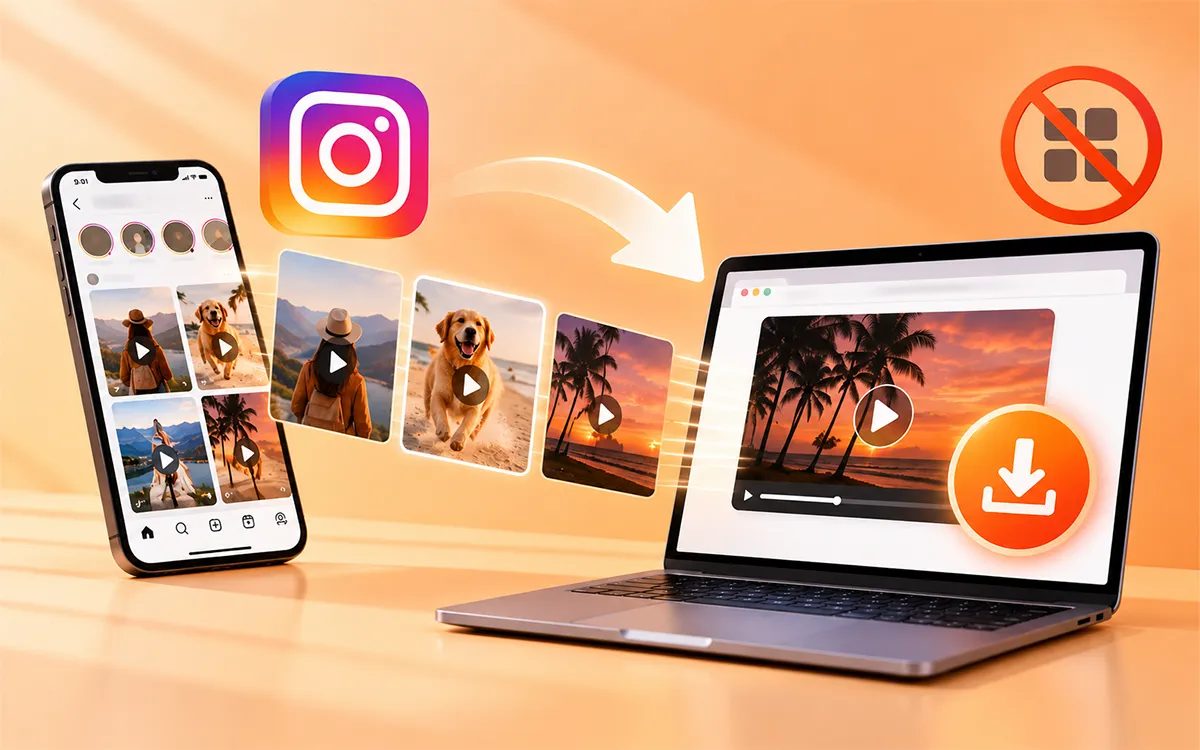
There is no doubt that Instagram is full of videos worth watching. But here is the thing: it is good to use with an internet connection. The real challenge comes when the internet is gone. There are times when you wish you had downloaded content on your PC or laptop. But Instagram does not provide the feature to save the content online. The good news is you can save content on your PC or laptop without the need to install any other application. The Instagram Video Downloaders, like VideoSaver, give you different methods to do so.
Download Instagram Videos on PC or Laptop with VideoSaver
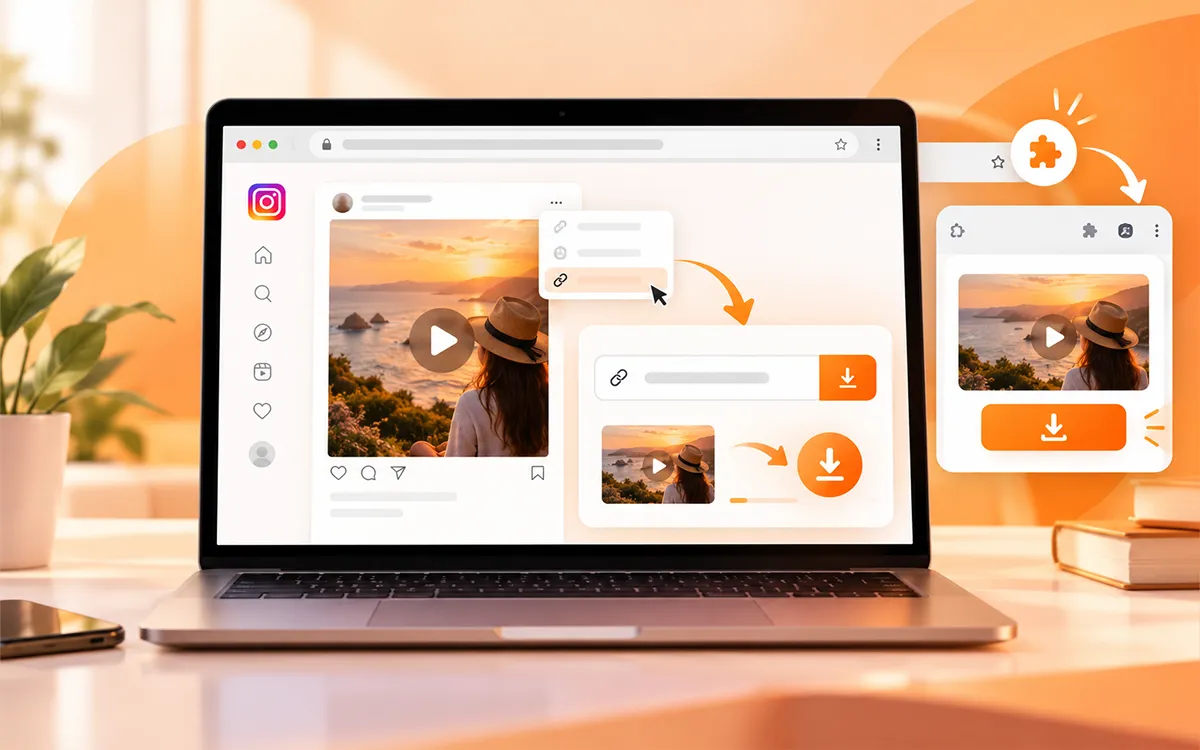
One of the simplest ways to download your content on a browser is with an online tool through your browser. VideoSaver gives you two methods if you use Windows, a PC, a Mac, or a laptop. Use its website on your browser or the Google extension. Both ways give you clean files without a watermark.
Save With VideoSaver Browser
The browser method works on all devices. It does not require you to download an extension. All you need is a supported browser and the video link to perform the process.
-
To start with, open Instagram in your browser.
-
Now find the video you want to download to access without the internet.
-
Click Share and select Copy Link or copy the video URL from the address bar.
-
Then open VideoSaver Instagram video downloader in another tab.
-
Paste the link into the box and select the quality you want.
-
To finish, hit the download button and get your file on your device.
This method is for those who save content not on a regular basis because there is no additional software or extension to install.
Save With VideoSaver Google Extension
If you frequently download videos from Instagram, then this method is for you. You are able to access the downloader from your browser instead of opening the website every time once it is installed.
- Install the VideoSaver Google extension in your supported browser.
- Now open Instagram and find the video you want to save.
- Copy the link to the video and open the extension from the extension area of your browser.
- Then paste the URL into the input field.
- Let it process the link and then select the quality.
- To save the file on your device, hit the download icon.
Save Instagram Reels on PC
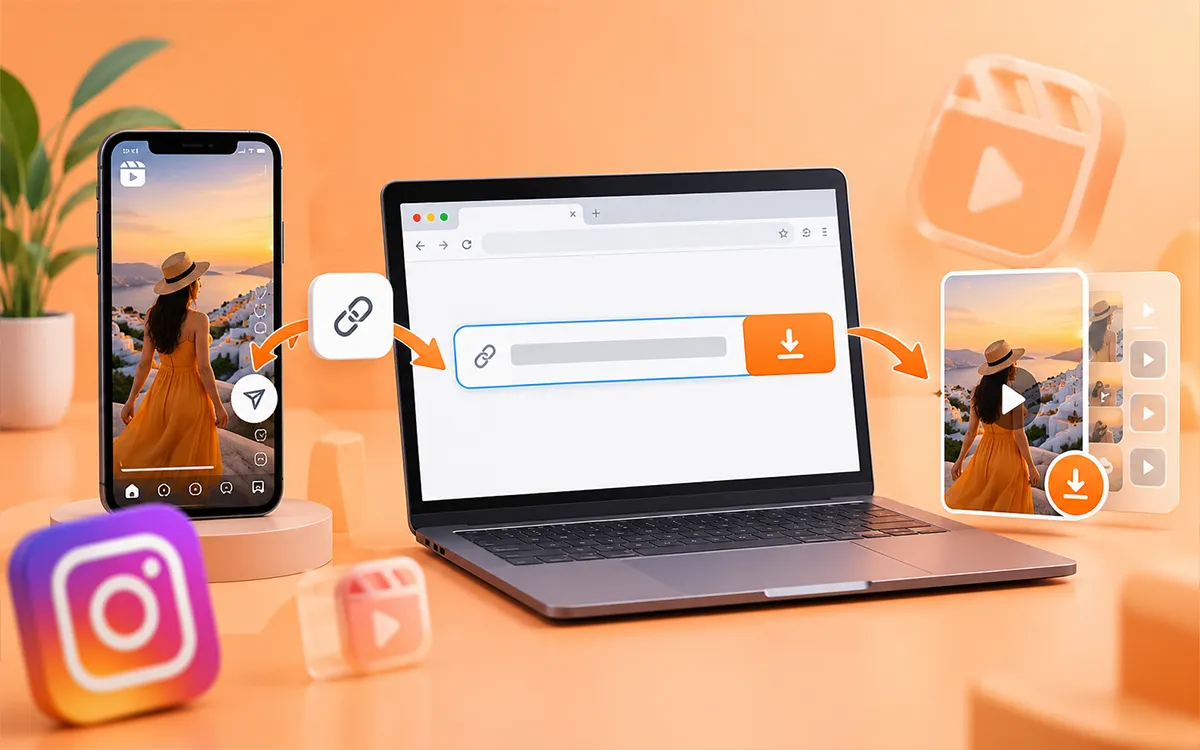
To save videos on PC, the process remains the same as browser-based methods or a Google extension. There are no other technical terms to learn.
- First open Instagram on your browser and go to the Reel you want to save.
- Copy the link to that reel.
- Now open an online downloader and paste the link there.
- Wait for the video to process.
- Then select from the available quality and press the download button.
How to Download Instagram Videos On Windows
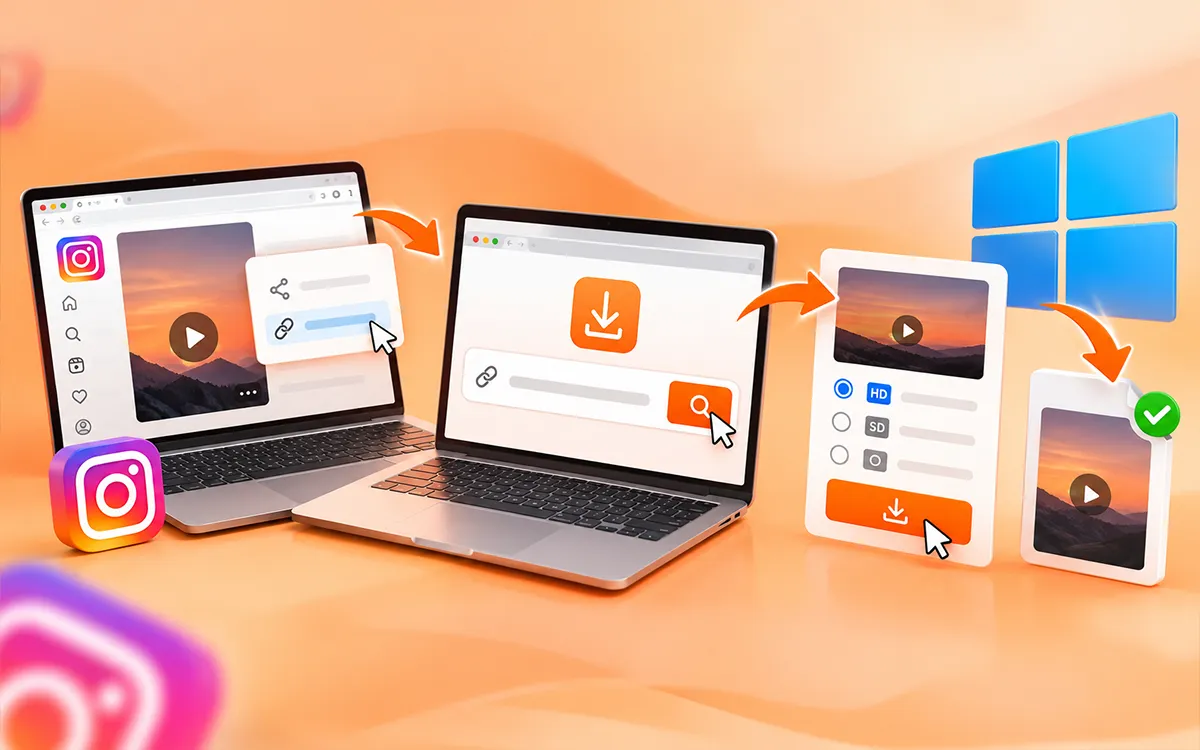
If you use Windows 10 or 11, then you are able to save the content from your browser instead of installing any software or extension. The process is as easy as before.
- Instagram → Copy Link → VideoSaver → Paste link → Choose quality → Download.
If you save videos sometimes, then this method is fast and easy for you to follow. You can find the content in your browser’s default download folder.
How to Save Instagram Videos on Mac
Mac users can save Instagram videos without the need to install any extra software or app. Open Instagram in Safari, Chrome, or another browser. Now find the video and copy its link. Then open VideoSaver and paste the link into the input field. Select from the available quality and press the download icon to save the video on your macOS device.
How to Get Better Quality When Downloading
Pay attention to the available resolution before you download anything if video quality matters. A few things you should remember.
- Choose HD when it is available and you need better clarity.
- Higher resolution means a larger file.
- A downloader cannot create quality that wasn't present in the original video.
If the original Instagram video is low resolution, if you download it in a larger resolution, it won't restore lost detail. For most laptop viewing, choosing a good quality version without the need to select the largest file is a practical balance.
Why Download Instagram Videos Without an App?
There are different reasons someone may prefer a browser-based method.
No Software to Install
You don't have to install a desktop program just to save a single Instagram video.
Works From Your Browser
You can use the downloader from your browser instead of switching between different applications.
Simple for Occasional Downloads
If you need to save a few videos, then an online tool can be more convenient than dedicated software.
Useful on Different Computers
Because the process is online, you can use it on a Windows PC, Mac, or compatible laptop without a specific desktop version.
Copyright and Reuse for Business Purposes
You do not get copyright ownership if you download the file. If the content is copyrighted, then avoid using it for commercial purposes without the consent of the owner. The legal rules can be different by country and by the circumstances. If you plan to use it commercially, then seek permission. This is important for:
- Advertisement and sponsored content.
- Compilations and client work.
- Monetized content.
- Company social accounts.
- Promotional campaigns.
Frequently Asked Questions
How to save Instagram videos on PC?
To save on PC, open Instagram in your browser and get the link to the video. Go to VideoSaver and put the link in the input field and press the download icon.
Which tool is most reliable for downloading Instagram content?
VideoSaver is the most reliable online video downloader. Your security and privacy are the primary goals of this tool. It allows you to save your content in HD quality.
Why is my Instagram video not downloading?
There can be multiple reasons that you are unable to download the video. The video may be removed, your internet may not be stable, or the file may be private.
Why should I use VideoSaver to download the content?
Because VideoSaver is a secure third-party Instagram video downloader. It keeps all of your details and history hidden and follows all the security protocols.
How do I download a video from Instagram?
Copy the link to the video you want to download. Now open an online Instagram video downloader such as hdvideosaver.com and paste the link there. Press the download button and get your content on your device in seconds.
Can I save an Instagram video on my laptop without an app?
Yes. You can use an online Instagram video downloader through your browser. Copy the Instagram video link and paste it into the box to download the video.
Can I download Instagram videos in HD?
Yes. You are able to save the video in HD if available from the source. The available quality depends on the original video.
Where are Instagram videos saved on my computer?
Your browser saves downloaded files in its default Downloads folder. You can check your browser's download history if you cannot find the file.
Do I need to log in to a downloader?
No. You do not need to provide your Instagram password to a downloader. A good and reliable tool does not ask for your personal information or passwords.
Final Thoughts
The process to save Instagram videos on a PC or laptop does not need to install an app or complicated software. With an online tool like VideoSaver, you can copy the link to a video or Reel and paste it into the downloader. Choose an available quality and save the video through your browser. Whether you are using Windows or Mac, the process is fast and straightforward. Just remember to respect copyright and creator rights and download or reuse content when you have permission to do so.