
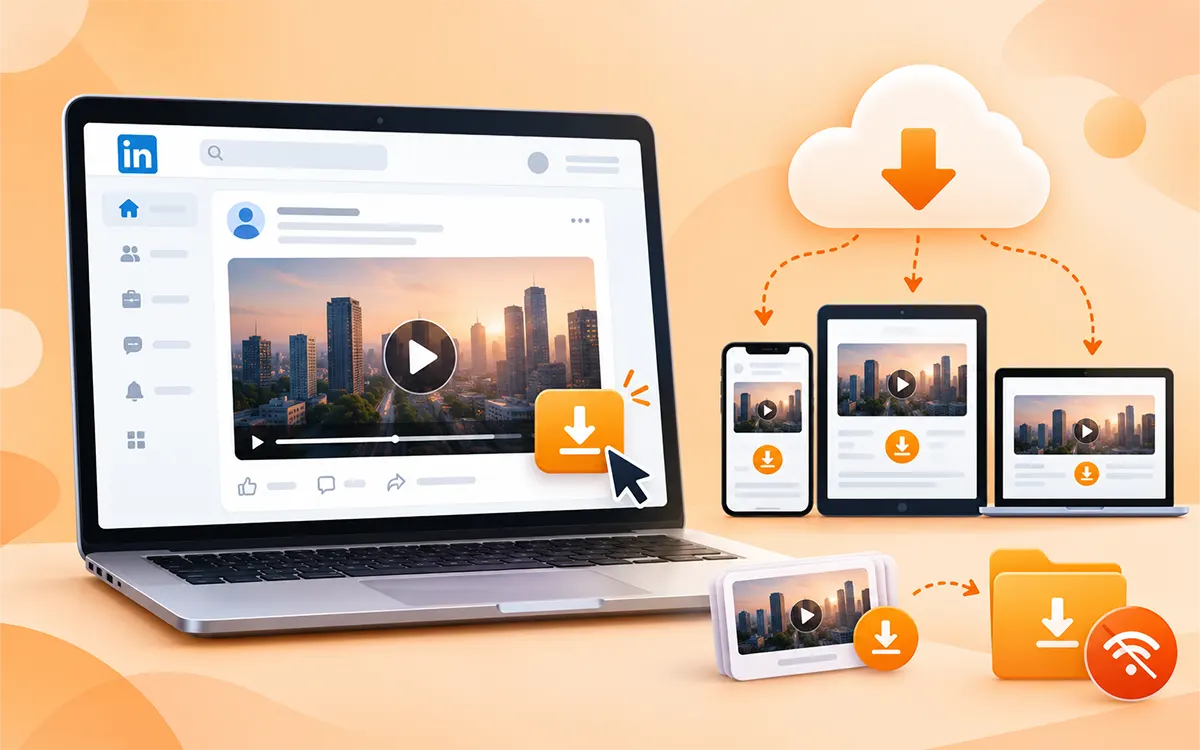
LinkedIn is full of useful videos from professional advice and industry insight to tutorials, interviews, and educational content. There may be times when you want to save a video that you can access later without searching your feed again. But the problem you face is that LinkedIn does not give its users a download option.
This guide will walk you through all the possible and practical ways to save the videos on different devices. By the end of this guide, you will be able to use an online LinkedIn video downloader. Without wasting a sec, let’s get started!
Can You Download Videos From LinkedIn
LinkedIn does not provide a universal download button for every video post. The options you get depend on the type of content and the way it was shared. A downloader may be able to retrieve a downloadable video file from the post link for the videos that are available to the public. But keep in mind that not every video is available for download. Some of them may be restricted or not accessible through these tools.
If you only want to find a post again later, then the built-in The save feature of LinkedIn is another option. It bookmarks the post without the need to download the video to your device. Different methods work for different situations. Use this table to choose the option that suits you.
| Method | Best For | Main Limitation |
|---|---|---|
| Online LinkedIn Video Downloader | To save videos through a browser | Not every post is supported |
| LinkedIn’s Save Feature | Finding a video again later | Saves the post, not the video file |
| Original Video File | To keep your own video in original quality | You need access to the original file |
| Screen Recording | Capturing video playback when permitted | Quality may be reduced |
How to Download LinkedIn Videos Online
If you do not want to install any extra software or app, then an online video downloader is the option for you. The process is simple to follow because all you need is the link to the post you want to save.
- As the first step, open LinkedIn and find the video you want.
- Now tap the Share button and copy the link to the post.
- Navigate to the VideoSaver downloader and paste the URL in the box.
- The last step is to select the quality you want to save and hit the download icon.
- This straightforward method saves a file on your device.
VideoSaver is the best option and a reliable tool to get the content on your device in seconds.
How to Save LinkedIn Videos on a Computer
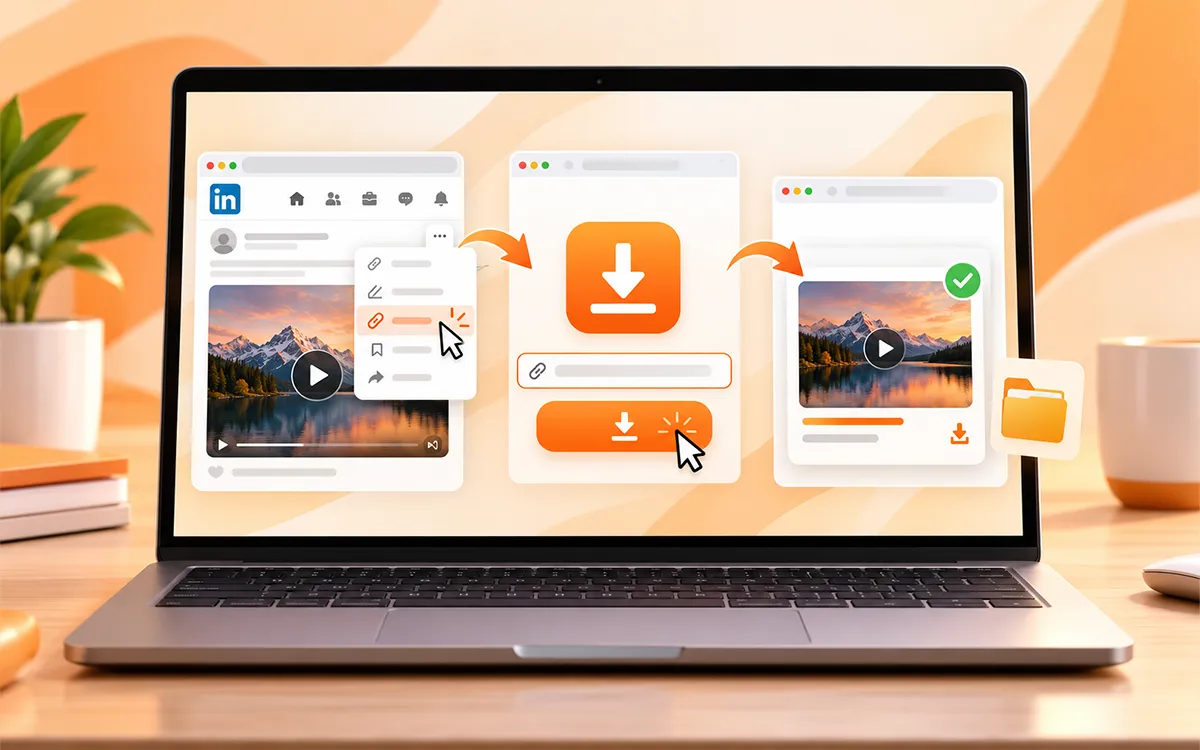
You can follow the same process on a Windows PC or macOS. You do not need anything extra to install. A browser is all you need.
- Open LinkedIn in your web browser.
- Find the post with the video you want to download on your device.
- After you find it, copy the post URL.
- Now open Videoaver in your browser.
- Paste the URL into the input field.
- Follow the available instructions to retrieve and save the video.
If you cannot find the file in the Downloads section, then open the download history of your browser to check whether the download completed or was blocked.
How to Download LinkedIn Videos on iPhone or iPad
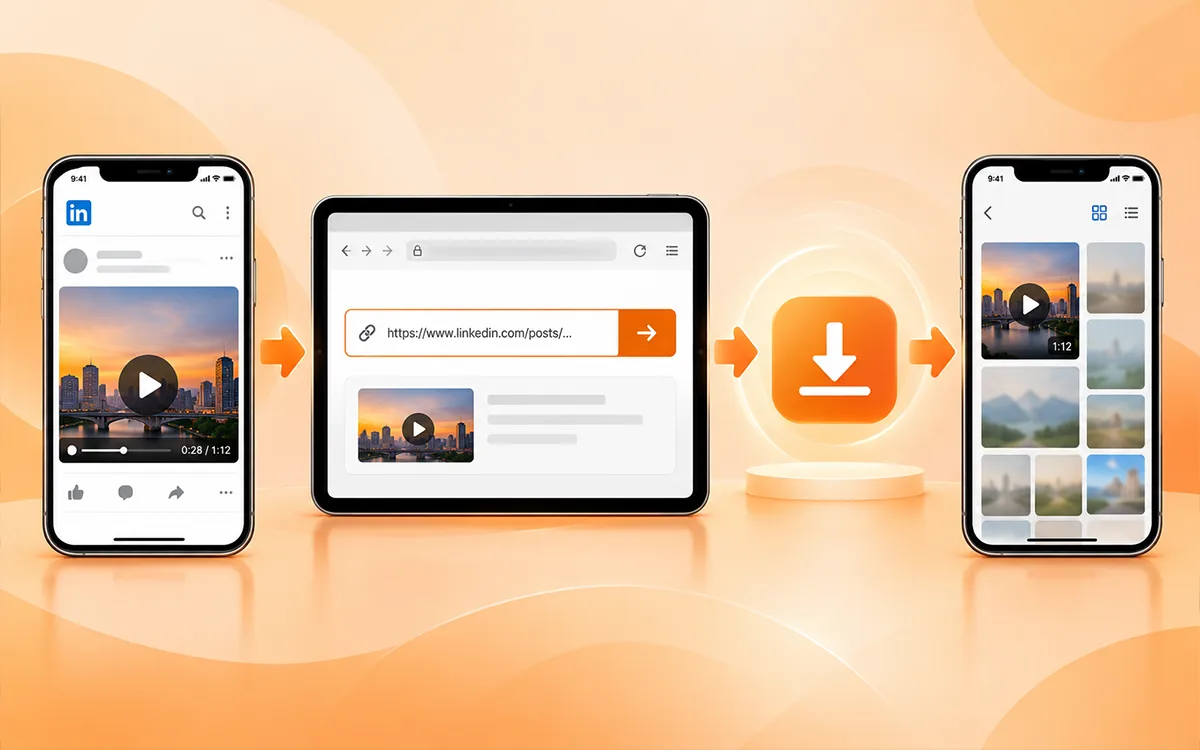
Speaking of iPhone or iPad, the process may need an extra step to find the downloaded video on your device. Sometimes the content is not saved in Photos. Given are ways to save the file on your devices.
External Tool
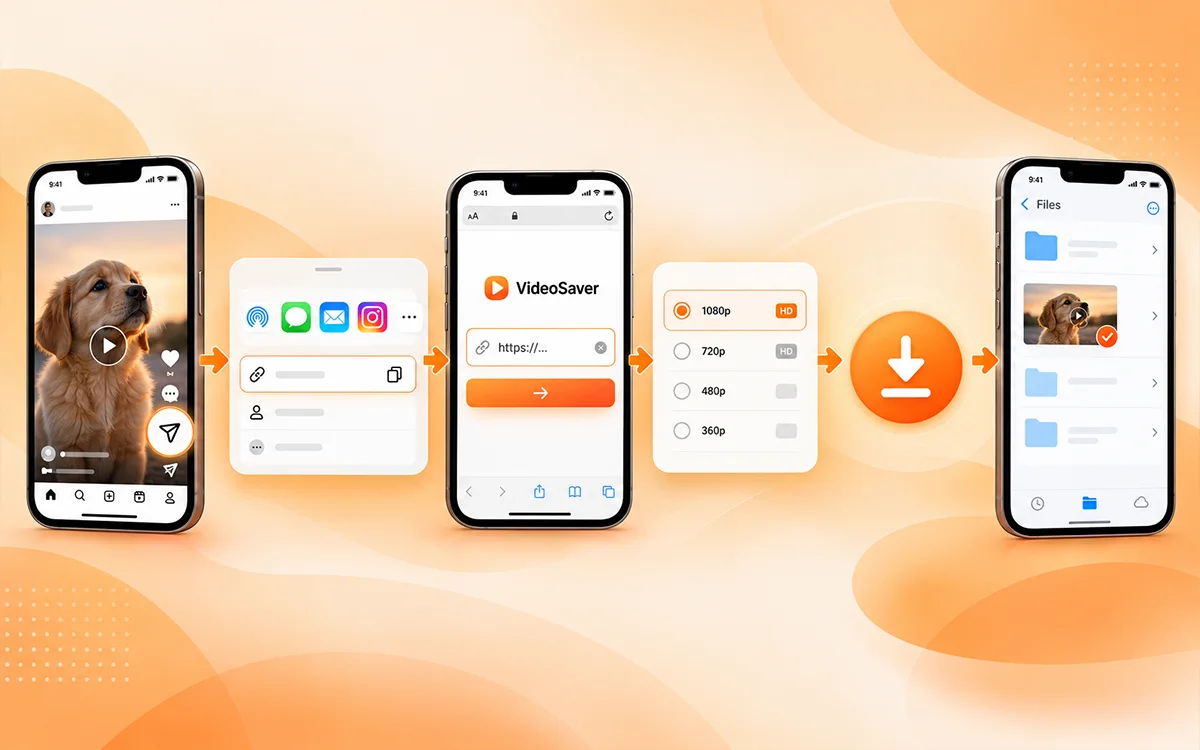
- First open the app and locate the video you want to save.
- Tap the share button and copy the link to the file.
- Next, go to Safari and open VideoSaver and paste the link there.
- Now after you select the quality, press the download icon.
Check your Files app or your download location to access the content once you download the file. The location may depend on your browser settings or iPhone.
Built-in Feature of iPhone
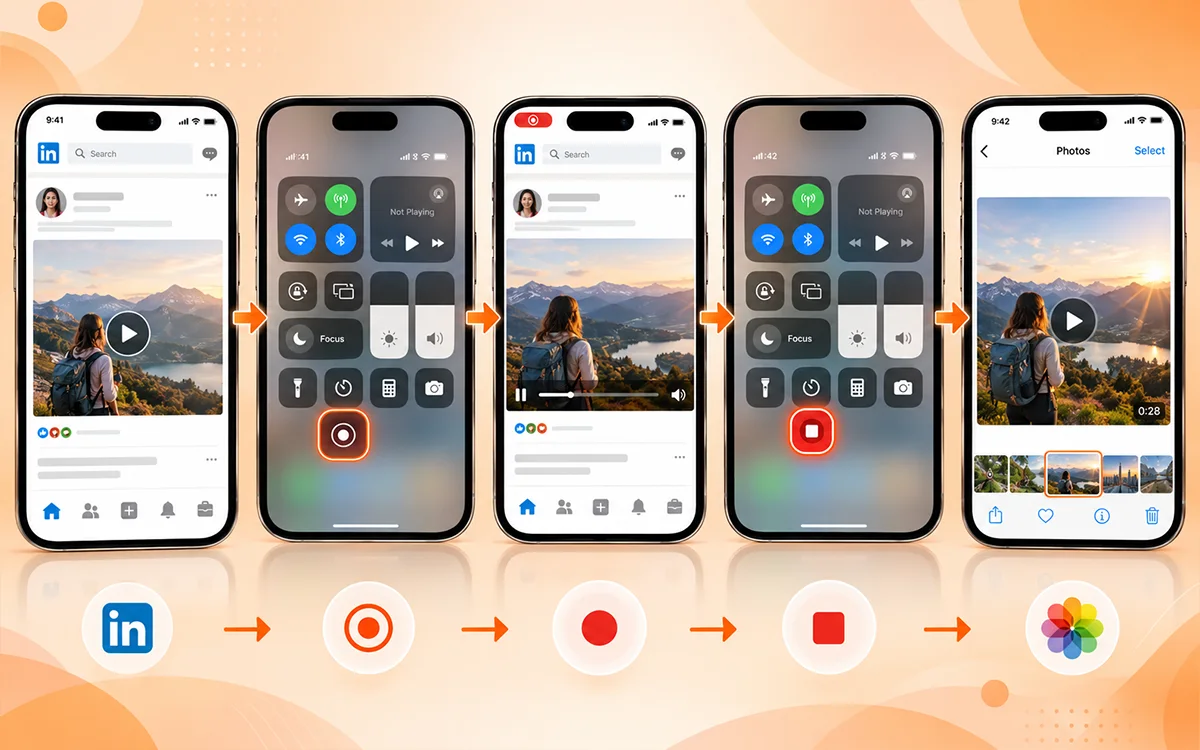
Open Settings and ensure that screen recording is available in Control Center. This is an internal feature of the iPhone to save the content on the device.
- First of all, go to LinkedIn.
- Find the video you wish to save.
- Now access the Control Center on your iPhone.
- To start the screen recording, tap the Recording button.
- Wait for the countdown and play the video.
- Stop recording when the video finishes.
- Open the recording in the Photos app.
If you are ready to compromise on the video quality, then this method can be easy and useful for you.
How to Save LinkedIn Videos on Android
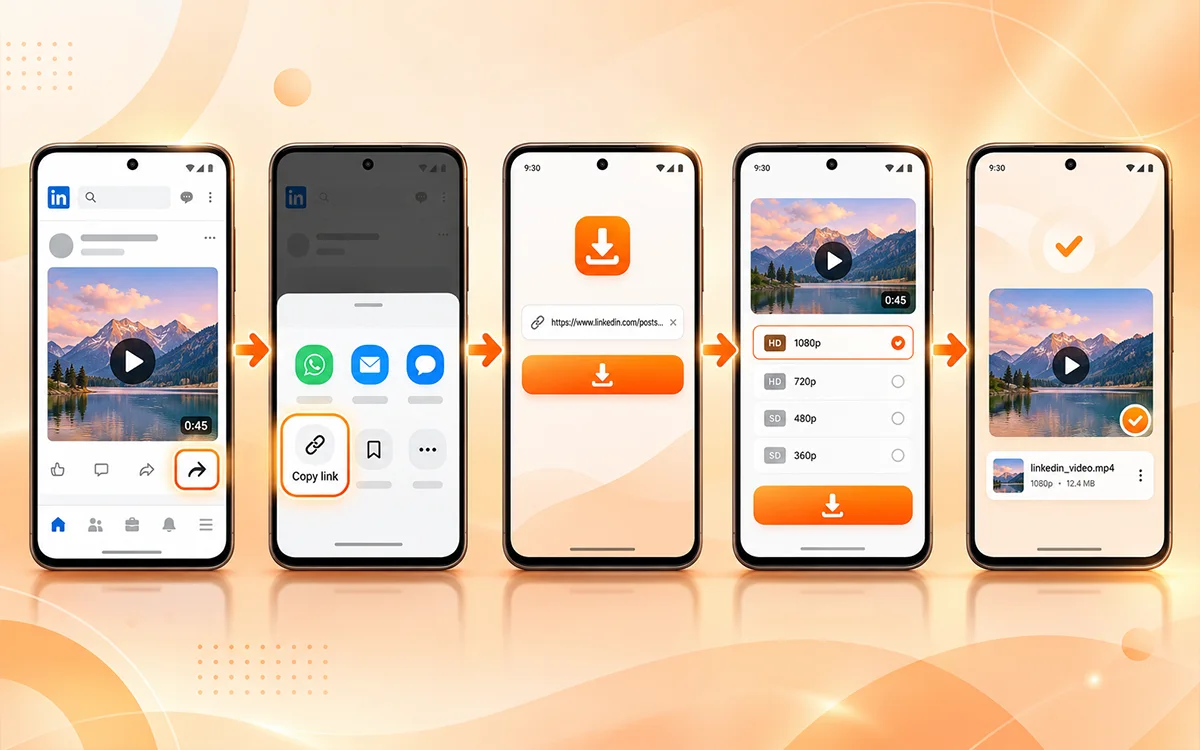
Want to download videos frequently? The VideoSaver App is the best option for you. Install the app from the Play Store once and enjoy unlimited downloads.
- To start with, find the video you want to save.
- Now press the Share button and copy the link to the file.
- Open the VideoSaver app and paste the link there.
- After you select the video quality, press the download button.
This is a good fit for you if you have content on an Android phone and save content often.
Download With Browser Developer Tool
If you are familiar with the browser tool, then this method can be the best fit for you.
- First of all, open the video post you wish to download.
- Right-click on the page and select “Inspect” or press Ctrl+Shift+I.
- Now go to the Network tab and play the video.
- To find the video source, type “MP4” in the filter box.
- Then, right-click on the link that appears and select ”Open in new tab."
- In the new tab, click on the right and choose “Save video as…" to download the file.
What Video Quality You Should Choose
If you do not want the unnecessary wastage of storage on your device, then make sure to download the content in the quality that meets your needs. You do not always need the high-resolution quality. The quality you choose depends on the purpose of the download.
| Quality | Best For | Storage |
|---|---|---|
| 144p–360p | Small screens and saving space | Very low |
| 480p | Basic viewing | Low |
| 720p | Everyday HD viewing | Moderate |
| 1080p | Phones, laptops, and TVs | Higher |
| 4K | Large screens and high-end archives | Very high |
Download LinkedIn Videos On Different Devices: Overview
The method you choose to save the content online depends on the device you use. Pick the one according to your convenience and start downloading now!
For other social media platforms, you can use our Snapchat Video Downloader or WhatsApp Status Saver.
| Device | Where to Start | Where to Find Video |
|---|---|---|
| Windows PC | LinkedIn in a browser | Usually the Downloads folder |
| Mac | LinkedIn in Safari, Chrome, or another browser | Usually the Downloads folder |
| iPhone or iPad | LinkedIn app and Safari or another browser | Usually the Files app |
| Android phone or tablet | VideoSaver App | Usually the Downloads folder or file manager |
Save The Video With LinkedIn Internal Feature
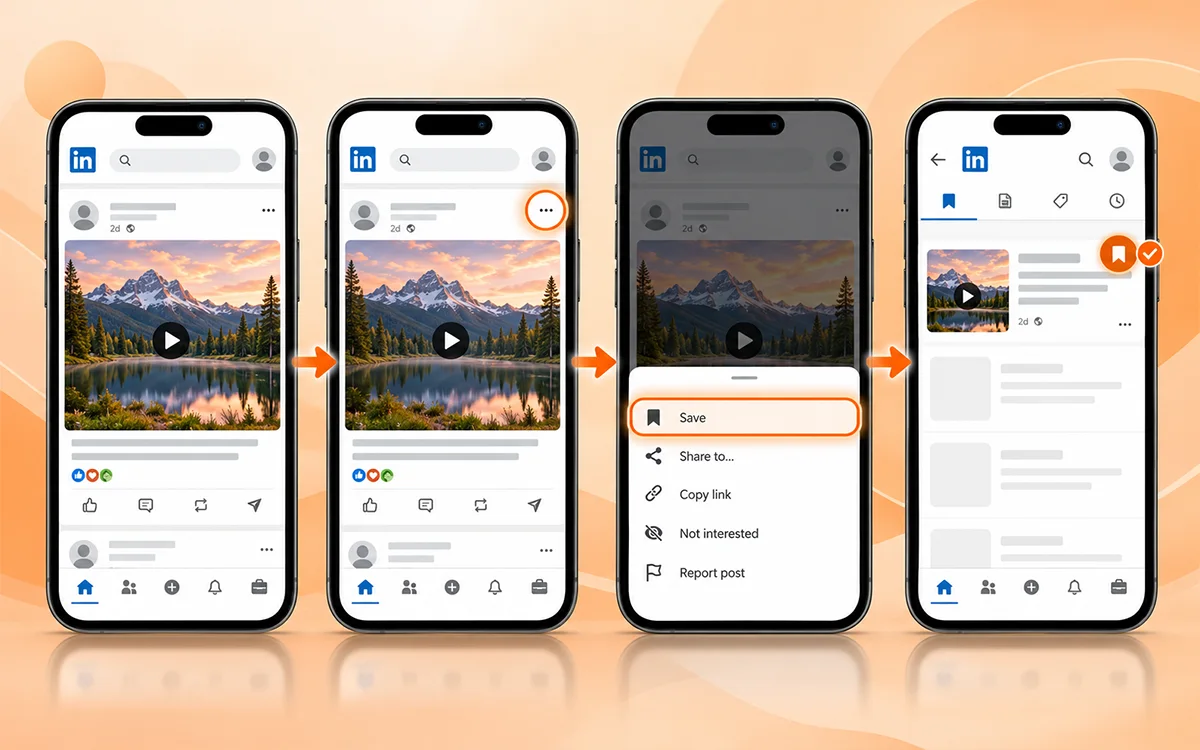
If you want to watch a video later, then it is not necessary to download the video. The built-in Save feature of LinkedIn lets you bookmark a post for later access.
- Find the post that has the video.
- Now open the three-dot menu.
- Select Save and Save this post or the equivalent option you see.
- Return to your saved items when you want to find the post again.
This method is useful when you want to revisit the original content without creating a separate video file. You can also bookmark the post in your browser or keep its URL in your notes.
How to Download Your Own LinkedIn Videos
If a video posted on LinkedIn is yours, then you may want to keep a copy for backup or reuse it on another platform. Check whether you still have the original video on your computer, phone, or editing software. The original file is often the best option because it may have better quality than a copy retrieved from a social platform.
If you do not have the original copy, then you can try an online downloader with the link to your post, but provided the post is supported. You can also review LinkedIn's account data export options to see whether the information you need is available. An export may provide media-related information without including the original video file. Keep a backup of important videos in a secure location so you do not have to rely on a social media post as your only copy.
Why Won’t My LinkedIn Video Download?
The Link Is Incorrect
It may be because the URL you copied is not right. A link to a profile or company page may not identify the video post.
What to do
Return to the original post and use the "Copy link to post" option. Paste the new URL into the downloader.
The Post Is Restricted or Private
The content you are trying to save can be restricted and not available to download. It may fail if the video is private and not accessible to the public.
What to do
Confirm that you have permission to access the content. If the downloader cannot access it, then ask the creator to share the original video file. Do not try to bypass access controls to recover the restricted content.
The Video Is Embedded From Another Platform
Some LinkedIn posts contain embedded media hosted by another service instead of a video uploaded straight to LinkedIn.
What to do
Identify the original hosting platform and check it is available to view and download. Follow the relevant terms and permissions of the platform.
The Download Button Does Nothing
A browser extension, content blocker, network problem, or temporary issue with the website may prevent a download from starting.
What to do
- Refresh the page and try again.
- Check your internet connection.
- Try a different supported browser.
- Review whether your browser blocked the download.
- Avoid clicking suspicious pop-ups or installing unknown software.
- If the problem continues, then the post may not be supported by the tool.
The Video Quality Is Lower Than Expected
LinkedIn may process and compress uploaded videos. That is why the available download may differ from the original file of the creator.
What to do
Check whether another quality option is available. If you need the highest quality version of your own video, then use the original source file when possible.
The Legal Reality of Downloading LinkedIn Videos
You need to understand that downloading a video and using it are two different things. If a video is publicly available, then it does not mean that you have permission to copy or use it for business. The rules apply to the content based on various factors like LinkedIn terms or the country you belong to.
What You Should Avoid
- To protect yourself and respect content creators, avoid the following practices.
- Do not upload content on your profile that belongs to others.
- You need to avoid using someone else's video for commercial use.
- Do not always assume that a post available publicly does not have any copyrights.
- Avoid such tools that ask for your personal information and unnecessary access.
What You Can Do
There are several practical ways to save and use LinkedIn videos responsibly.
- Keep copies of your own content that you uploaded.
- If you want to use someone's video then it is suggested to ask for permission.
- Choose the file that is licensed for your intended use.
- Use reliable online tools like VideoSaver to download the content to access when you do not have the internet.
Frequently Asked Questions
Why choose VideoSaver to save content?
VideoSaver is a reliable online video downloader. It gives clean videos without any watermark and all supported formats like MP4 and MP3. It lets you save LinkedIn videos in HD quality and 4k when available.
Is it safe to use VideoSaver, the LinkedIn video downloader?
Yes. It does not access your private data or ask for your personal information such as your password or account logins. It is a third party tool that works independently.
Can I download LinkedIn videos for free?
Yes. There are plenty of free online downloaders that allow you to save the content without paying a penny.
Am I able to save LinkedIn content without any account?
Yes. You do not need an account to save content. All you have to do is get the link to the post you want to download and paste it into the downloader.
Can I download LinkedIn videos on my phone?
Yes. You can download the video whether you use an iPhone or an Android. Use the VideoSaver app for Android and its web version for your iPhone.
Can I download private LinkedIn videos?
You can save the content from the private account you follow. Always make sure you have permission to save and use the video.
Final Verdict
Downloading a LinkedIn video can be useful when you want to revisit professional advice or access a supported video offline. The easiest point of start is to copy the correct post link and try an online downloader. If you want to give it a try then visit VideoSaver and follow the available instructions.
Remember to respect the rights of the creator and protect your privacy. Always make sure to confirm that you have permission for any reuse beyond personal reference.