
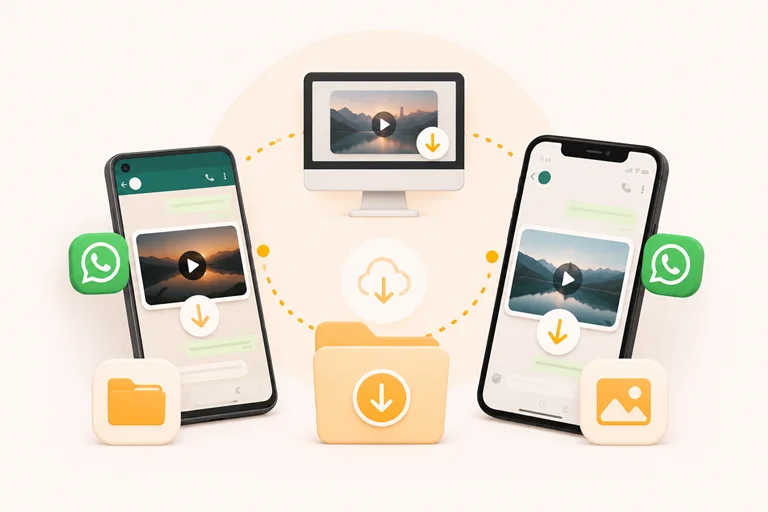
Download WhatsApp Videos on Your Device
Before we start, let’s agree that downloading your WhatsApp videos should not be a difficult task. You need a reliable and easy-to-use platform to save your WhatsApp videos.
VideoSaver is a smarter solution for your online downloads. Install the app from the Play Store on your Android phone and save unlimited videos in HD quality.
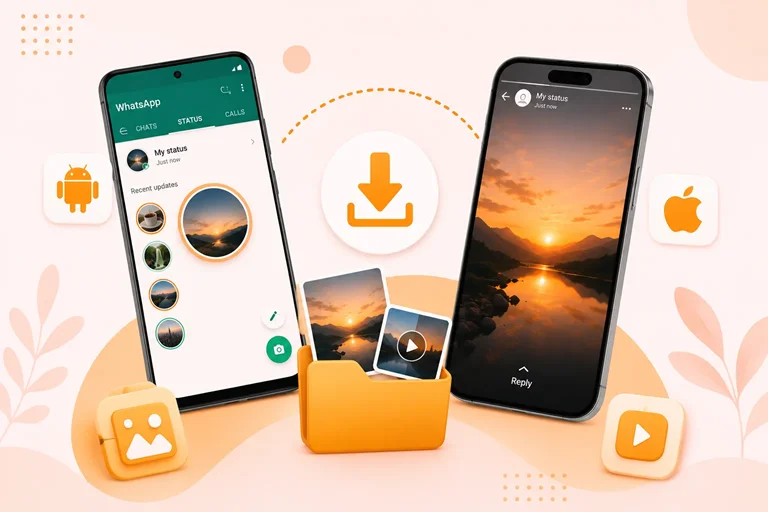
There are different ways to download WhatsApp videos to view offline. It depends on whether the video is in the chat or it's a status. The complete guide is here for you.
Download WhatsApp Video on Android
The way to save a video from a WhatsApp chat is very simple. You can use any of these methods to download a WhatsApp video online on your Android.
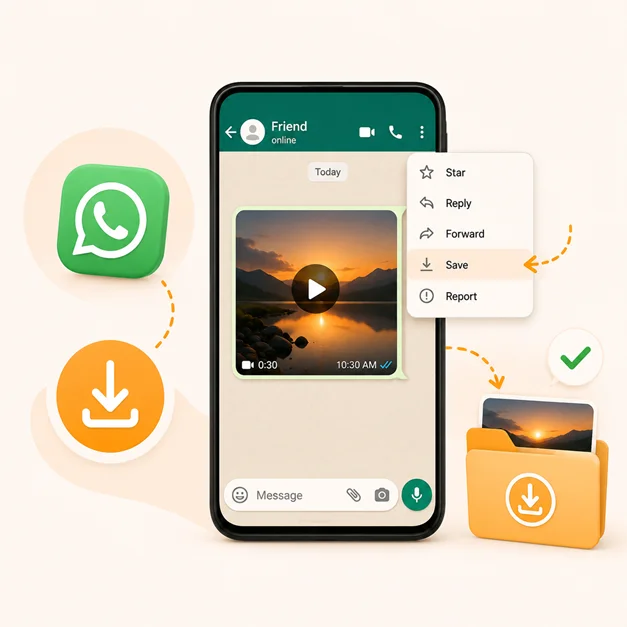
Save Manually to Your Android Phone
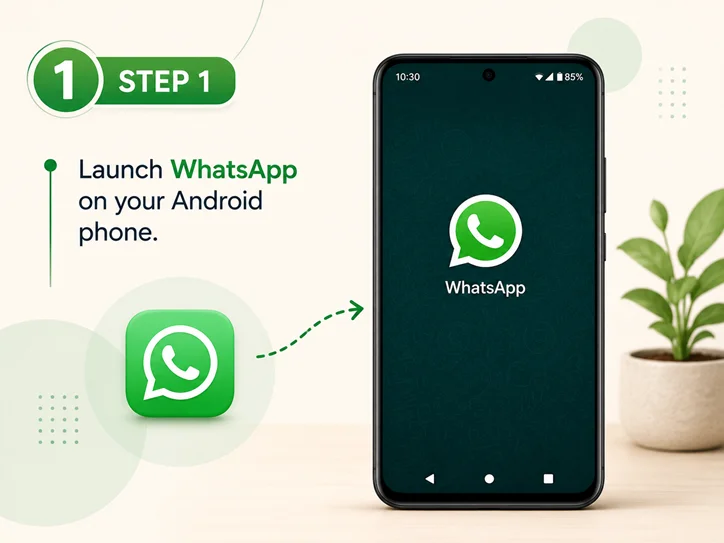
1. Launch WhatsApp on your Android phone.
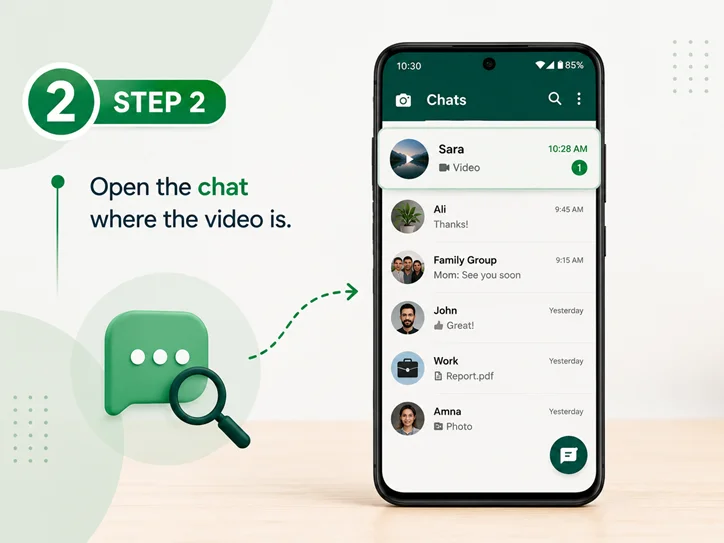
2. Open the chat where the video is.
3. Play the video by tapping it, then tap the three dots at the top right of the video.
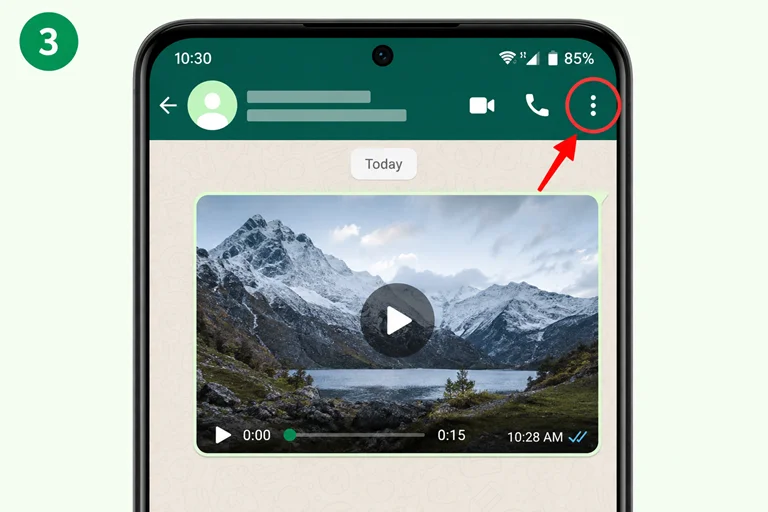
4. Select the option Save. The video will be in your gallery.
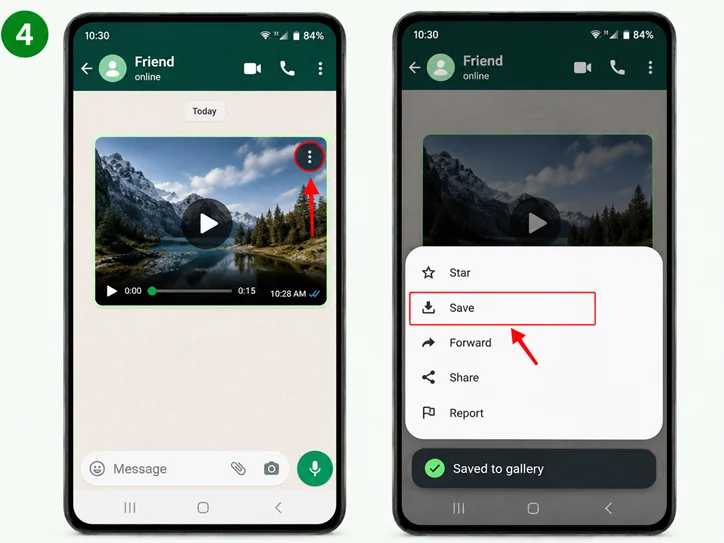
Automatic Way to Save WhatsApp Video
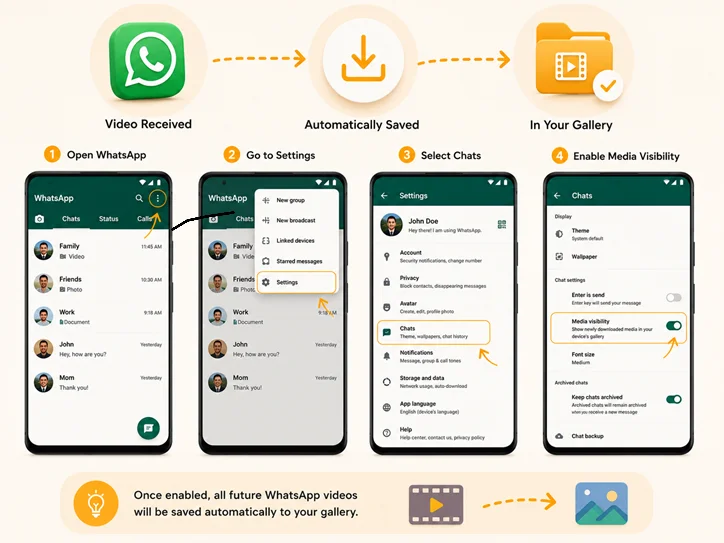
- Videos can be saved automatically to your device storage if you enable it in the settings.
- Open WhatsApp and tap the three dots at the top right of the screen.
- Go to Settings and select Chats. Enable the toggle in front of Media Visibility.
- Now tap OK to automatically download all future videos in your gallery.
Save WhatsApp Status Video
Just like chat videos, WhatsApp does not allow this feature for statuses. Use the VideoSaver app and save in seconds. This app also supports WhatsApp Business.
- First, install the VideoSaver app from the Play Store.
- Next, open the app and give the required permissions.
- Watch the full status from start to end to save media to the device’s cache.
- Check all the available WhatsApp status videos and select the one you want to download.
- To save a WhatsApp status video in your gallery, click Download.
Download WhatsApp Videos on iPhone
The experience of downloading videos on iPhone is kind of different from Android.
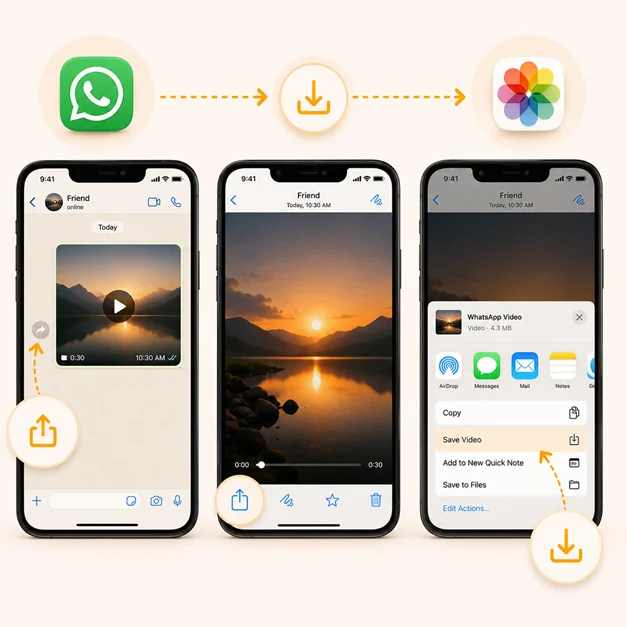
Save WhatsApp Video to Photos
Do you want to save every video? Follow these steps to download only the specific video you want to.
- First of all, go to WhatsApp on your iPhone and open the chat that has the video.
- Now click the video to view it and press the Share button.
- Next, tap Save, and your video will be saved on your phone.
Enable Auto Saving
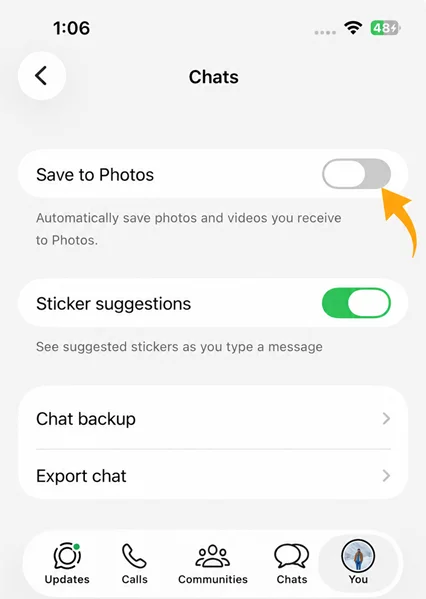
For automatic download of the video in Photos, follow the steps to change the settings.
- Launch WhatsApp and tap Settings at the bottom right of the screen.
- Now move to Chats.
- As a final step, enable the toggle for Save to Photos.
- To control automatic downloads, you can also check Storage and Data settings.
WhatsApp Status Video
On your iPhone, you can save the WhatsApp status through the existing screen recording feature on iPhone.
- Open settings of iPhone and go to Control Center. Be sure to add the screen recording feature.
- Now, swipe down from the top right of the screen and tap the screen recording button.
- Then access WhatsApp and play the video. The recording will start in three seconds.
To Get WhatsApp Videos on PC or Mac
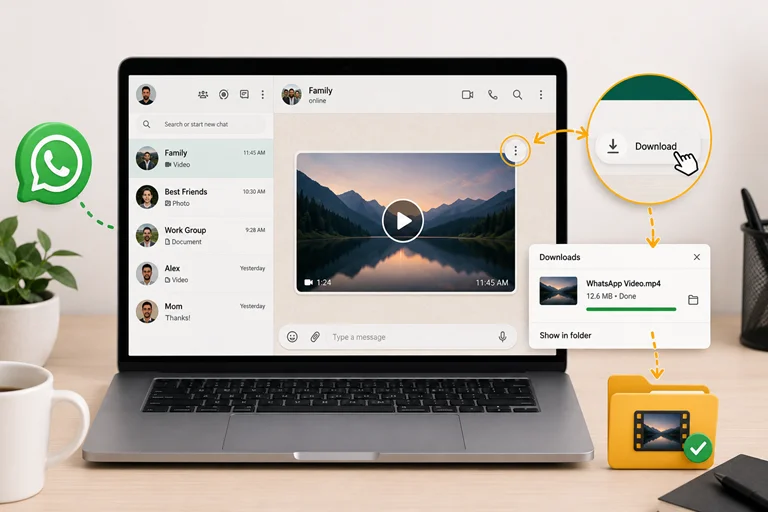
You are able to download the WhatsApp video on your PC or Mac using your web browser.
- Launch the WhatsApp app or open it in your browser.
- You must have WhatsApp installed on your phone. Go to Settings on your phone, click Linked Devices, and scan the QR code shown on your desktop.
- Now open the conversation with the video you want to download.
- Then click the Download button in the video viewer.
- Choose from the options your browser gives you to save the video.
Android and iPhone Saved Videos
We make a comparison table of both Android and iPhone devices. It makes it easy for you to navigate your saved WhatsApp videos on your device.
| Comparison Table - Android and iPhone- | ||
|---|---|---|
| Feature | Android | iPhone |
| Save WhatsApp chat video | WhatsApp or Gallery | WhatsApp or Photos |
| Find Saved Videos | Gallery or WhatsApp Media Files | Photos app |
| Automatic media saving | WhatsApp media settings | WhatsApp save to Photos settings |
| Storage location | WhatsApp media folders | Photo library |
| WhatsApp status | You can use a third-party tool | Different options depending on iOS |
| App recommendation | VideoSaver Android App | Use an iPhone-compatible method |
How to Fix If Video Won’t Download?
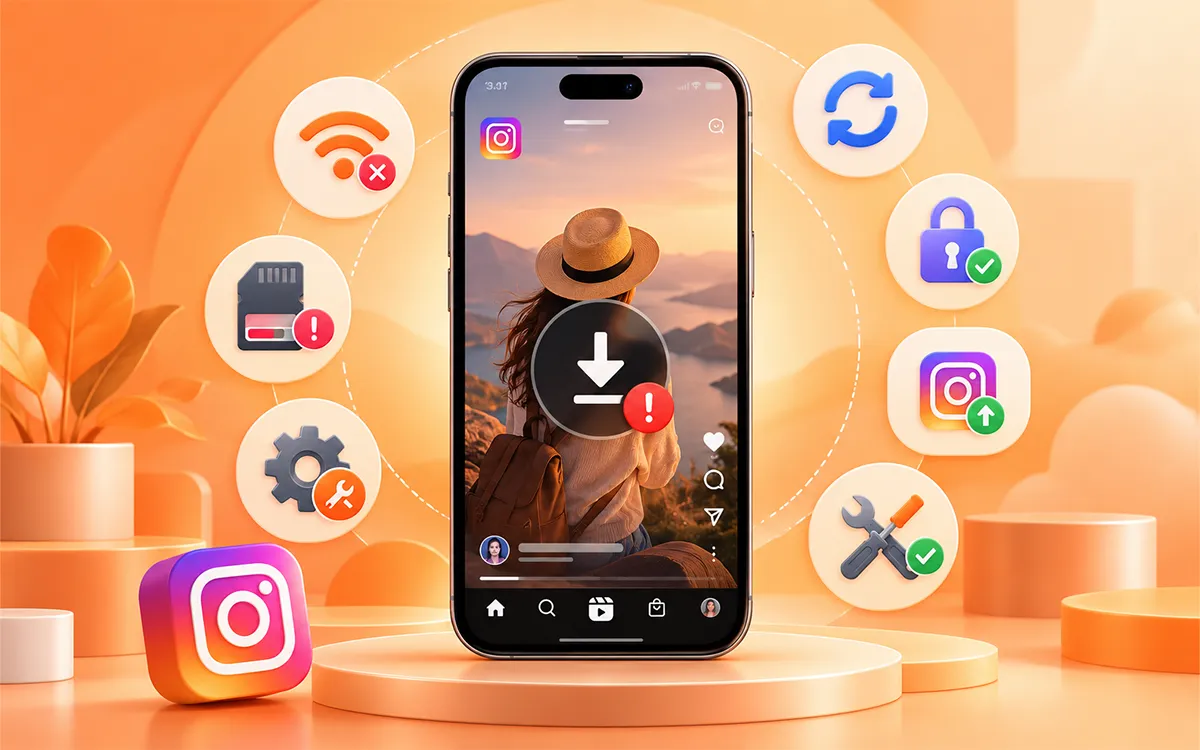
Try these quick fixes if you are having trouble downloading the WhatsApp video.
If the video does not start downloading, check your internet connection and try WiFi or mobile data. Make sure you have space on your phone or computer to ensure the download. The video is not downloading automatically. Then check WhatsApp → Settings → Storage and Data → Media → Auto Download. Automatic downloading is not supported? On Android, check Media Visibility and WhatsApp media folders. On iPhone, check Photos and WhatsApp photos permissions. If the download fails. Restart WhatsApp or check storage and permissions. Update WhatsApp if available. Ask the sender to resend the video if the old video is unavailable. If your video has no sound, then check the volume or Bluetooth and try another media player. WhatsApp sometimes compresses the video. If the video quality is not good, then ask to resend the video in original quality. If you can't download the WhatsApp status, ensure the status is still available and check our complete guide to save WhatsApp status on Android and iPhone for detailed steps. Try another video player or download the file again if the video is not playing.
Quick Fix
Internet → Storage → Permissions → WhatsApp Settings → Restart → Update → Try Again.
After all these fixes, if you still face a problem downloading. Ask the person to resend the video or contact VideoSaver Support.
Legal Disclaimer
This guide is only for informational purposes, through which you can archive videos for personal use only. We are not affiliated with WhatsApp Inc. Make sure to respect the copyrights of users.
Frequently Asked Questions
How to download a WhatsApp video?
Open your WhatsApp chat. View the video and tap the Download or Save button. On Android, the saved video will be in the Gallery, and on iPhone, it will be in Photos.
How do I download WhatsApp videos on Android?
View the video in WhatsApp and press the Download or Save option given to you. For fast downloads, use the VideoSaver app.
How can I save WhatsApp videos on iPhone?
Go to WhatsApp and open the video you want to save. Then tap Share and press Save Video.
Without any app, can I download WhatsApp videos?
Yes. You can download videos in chats with the built-in feature of WhatsApp. For status videos, you can use our video downloader on Android.
Does VideoSaver work on an iPhone?
It currently supports Android. For iPhone, you can use the pre-installed feature to save the videos.
Is VideoSaver affiliated with WhatsApp?
No. VideoSaver is an independent app and not affiliated with WhatsApp.
Why can’t I play my downloaded WhatsApp video?
Maybe you have not downloaded the complete file. The device media player may not support its format.
Is it necessary to view a WhatsApp status before I save it?
Yes, WhatsApp will save the media temporarily to your device's cache if you watch the complete status. Ensure that you watch the video to the end.