
Why You Need an Easier Way to Save WhatsApp Status
You must have experienced that you tapped through a WhatsApp status and wished that you could save it. It may be a gorgeous photo, a hilarious video, or a meaningful quote from a friend of yours, unlike other social media platforms that give you a little download arrow. The security of WhatsApp is high. All status updates disappear after 24 hours. Whether they are photos, video clips, or text posts. Because WhatsApp does not give you an official Save button to download the status. All you need to do is know some inside tricks to save WhatsApp Status online on your device.
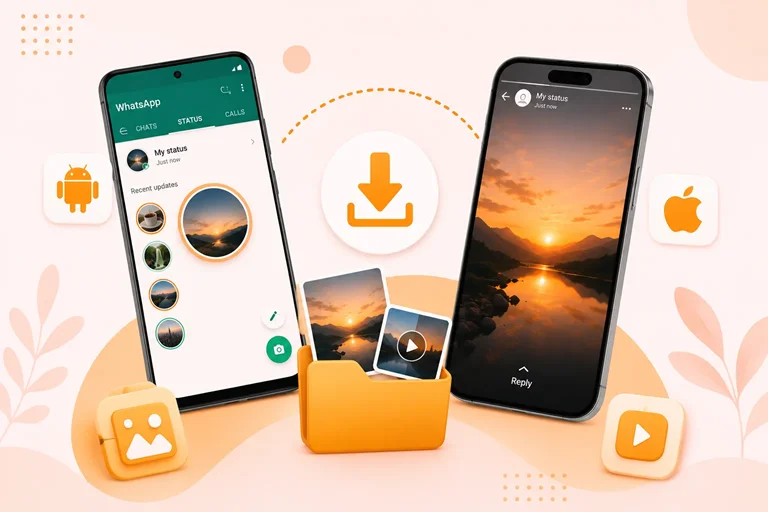
Irrespective of whether you use an Android or an iPhone. Our WhatsApp status video downloader offers you a flexible system. Our tool lets you save high-quality media on your device in a few seconds. The app is on the Play Store for Android users. Here is the complete guide to break down how to save WhatsApp statuses easily.
Ways to Save WhatsApp Status on Android
Android lets you examine your phone’s internal storage like a computer. The process to save files here is simple. You do not need to download extra software if you do not want to.
An Unseen Folder Method (With no App)
WhatsApp saves your viewed status videos and photos on your phone. You can pull those files from your system files.
Watch the Status First
As a first step, open WhatsApp and go to the Status tab. First, watch the complete status from start to end. The status will not be downloaded in the cache folder if you skip this step.
Go to My Files
Open your file manager in the next step. It can be Files by Google, Solid Explorer, ES File Manager, Fossify File Manager, or any other that comes with your phone.
Show Hidden Files
Now go to Settings by tapping the menu dots or lines in the top corner. Then turn on Show hidden files on your device.
Follow the Trail
Next, to make it easy, follow the steps.
1. Tap on Internal Storage
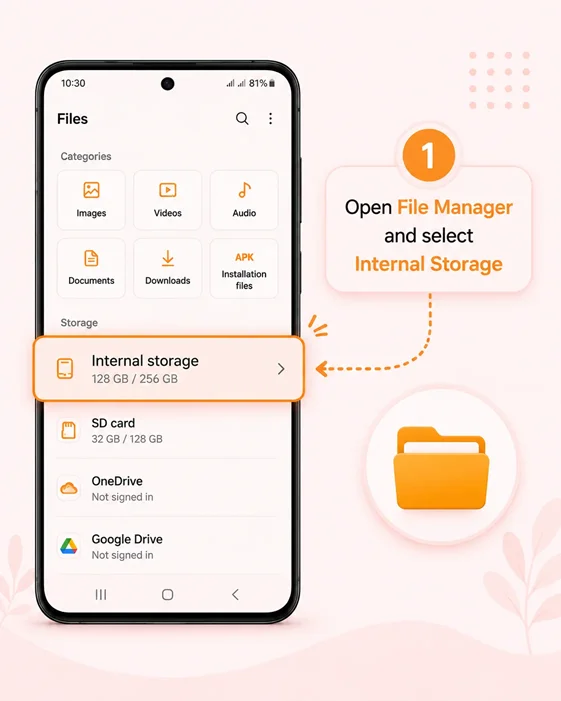
2. Go to Android, then select Media
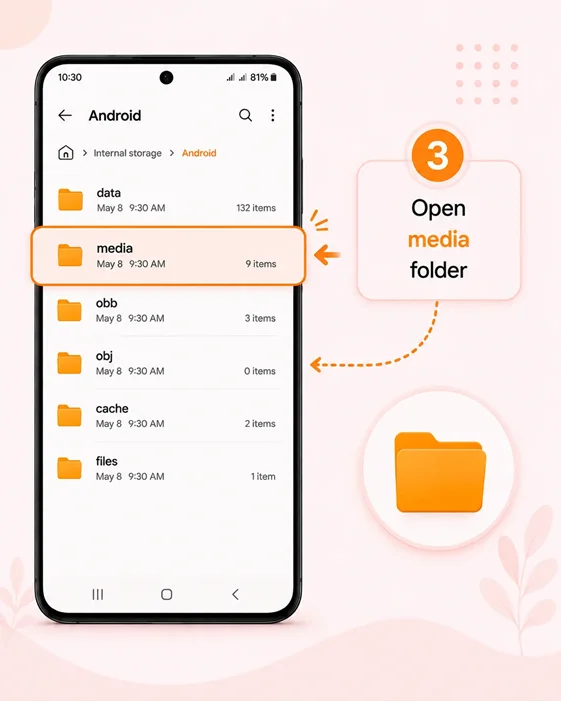
3. After tapping on Media, go to com.whatsapp folder
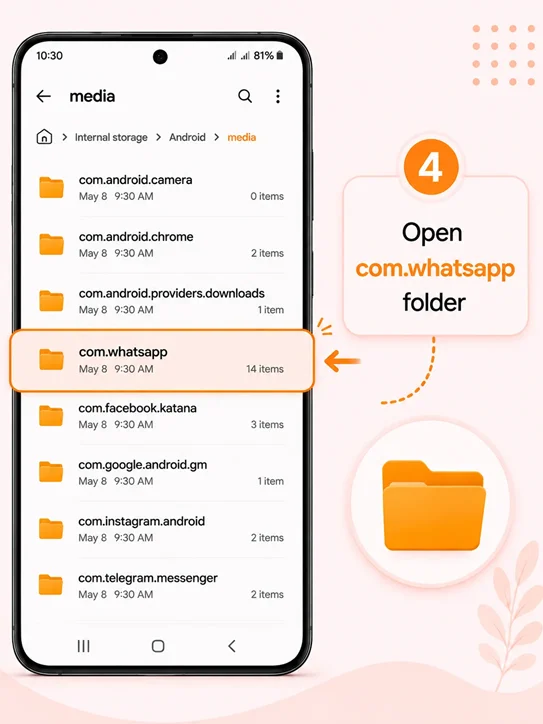
4. Select WhatsApp
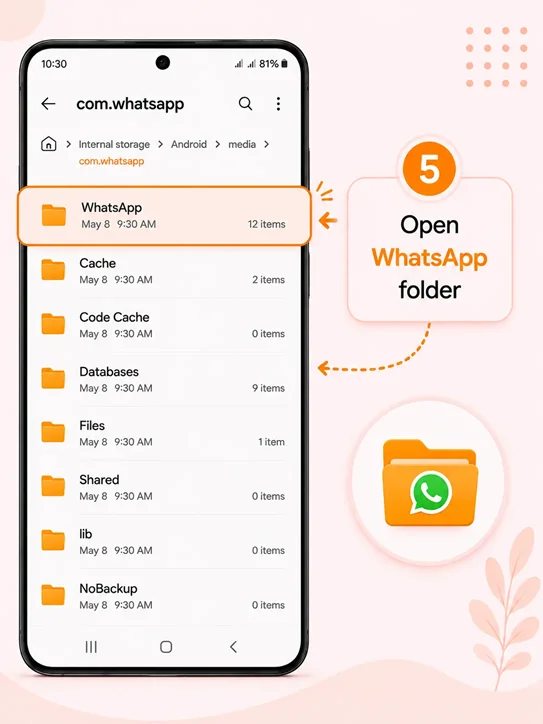
5. Then go to WhatsApp Media
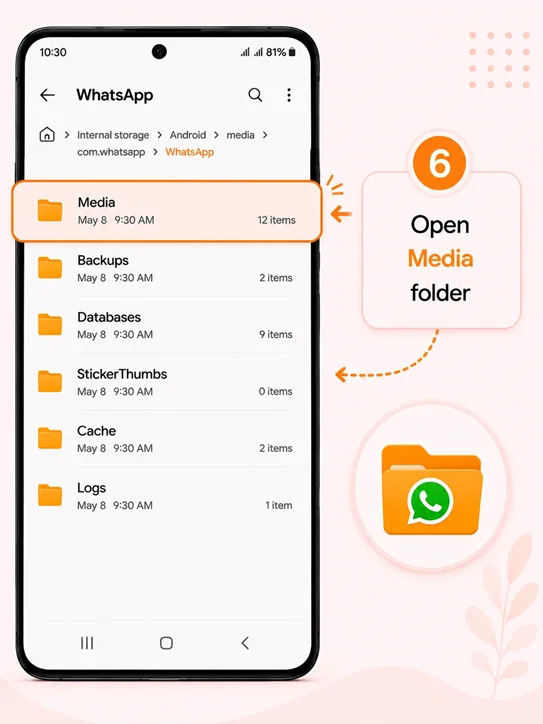
6. And finally in last select .Statuses file.
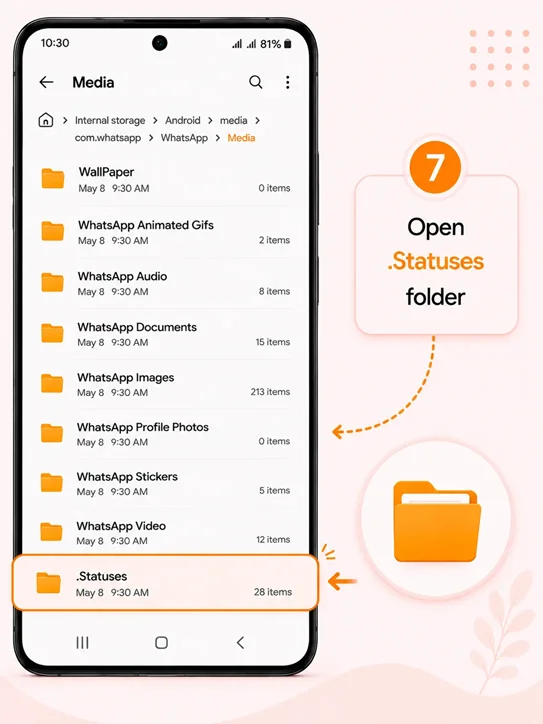
7. Save and preview your WhatsApp status videos or photos.
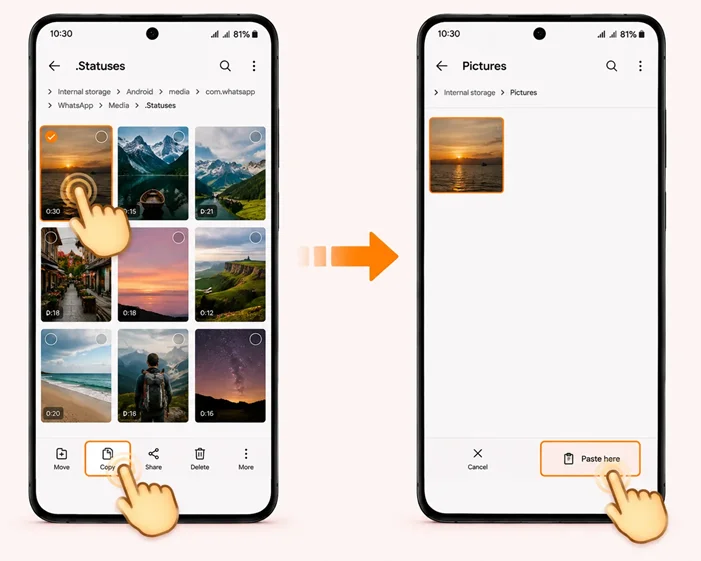
Copy Your Favourite Items
After the above steps, you’ll see a list of everything you have viewed recently. Press for long the photo or video you want to keep. Click Copy and paste it into your regular Downloads or Pictures folder.
The saved file is forever yours and secure from the 24-hour deletion rule.
Using the VideoSaver WhatsApp Status Saver App
If going through different files seems to be a headache for you. Our HD WhatsApp status video downloader allows you to recover deleted videos. It gives you an auto-saving option. Saving your favourite status updates takes only a few taps. This app works for WhatsApp Business also. And it has a separate media folder of its own that saves every video or photo you ever download using our tool.
Watch the Full Status First
Go to WhatsApp on your Android device and fully view the photo or video status you want to download. This ensures the media is temporarily present on your phone for some time.
Open VideoSaver App
Now go to the WhatsApp video downloader from your app options. Its clean command center will organise your media options.
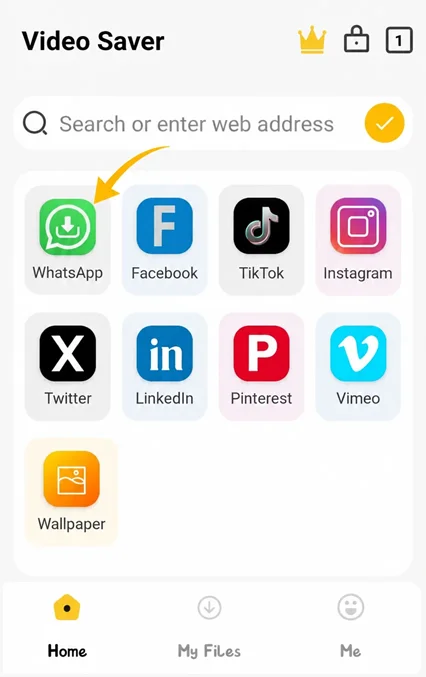
Find Status to Save
Go to the status section of VideoSaver, where all of your recently viewed files are arranged. Tap on the photo or video you want to download.
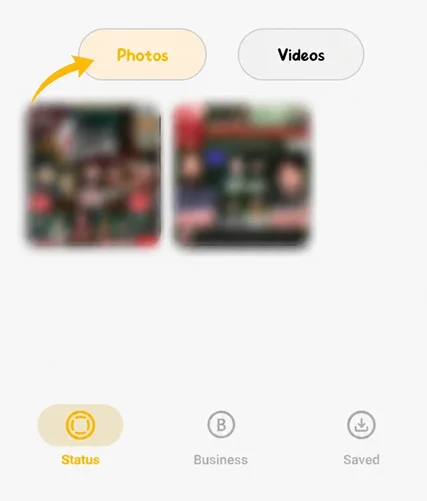
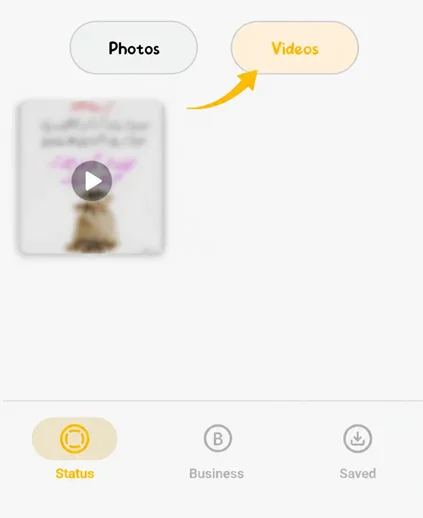
Press Download
Press the download button. The status will be saved directly into the gallery of your phone. No more fear of time restrictions.
VideoSaver Video Downloader is growing very rapidly. With over 10K users on the Play Store since our release on June 13, 2026.
Procedure to Save WhatsApp Status on iPhone
Apple iPhone is known for its high security. This means you can’t open up a file manager and dig into WhatsApp's internal folders. iPhone users have to use other alternatives.
Save Video Statuses With Screen Recording
Download WhatsApp status videos to your device with fast and easy steps. The already installed iOS screen recorder is your quickest option.
Set up Your Control Center
Open the settings of the iPhone and go to Control Center. Scroll down and tap the green ‘+’ next to Screen Recording.
Record the Clip
Open WhatsApp and prepare the status you want to save.
Swipe down from the top right of your screen to open your Control Center. Tap the Screen Recording button. Give it three seconds.
Go back to WhatsApp and let the video play.
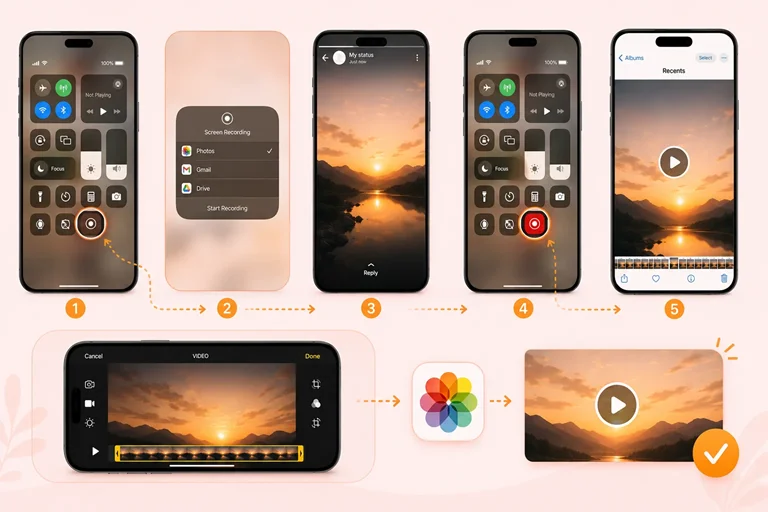
Trim the Edges
Stop the recording from your Control Center. Now open your Photos app and press Edit. To make the video clean, crop the top and bottom. Save your changes!
Taking a Screenshot For Photos
For image status, taking a screenshot does the work for you.
Open the photo status.
Press the Side Button + Volume Up together at once.
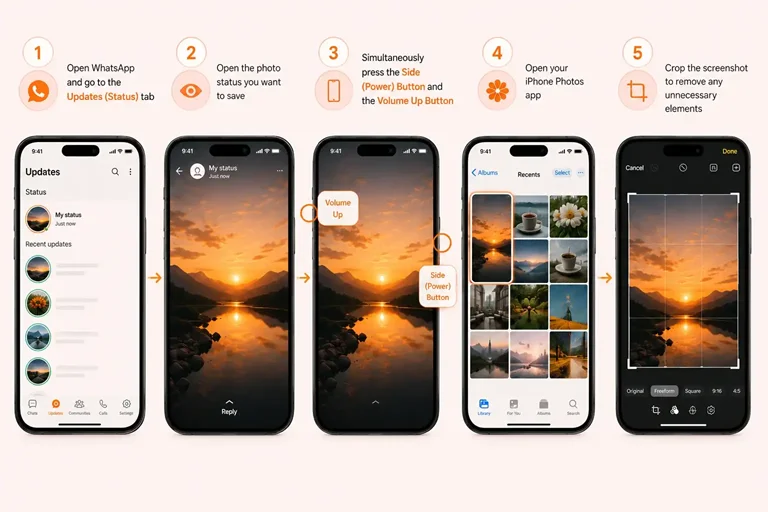
Pro Tip: After you take the screenshot, tap the preview thumbnail in the corner. Crop out the screenshot to remove WhatsApp UI elements. Press Save to Photos.
Drawback: Taking a screenshot will affect the image quality. As the original image quality is not downloaded, and it does not support video
Why WhatsApp Doesn’t Make This Easy
Let me get this straight. WhatsApp appreciates privacy. Your phone saves the media in the form of status to a temporary cache file folder in your phone’s memory while you view it.
But do you know the catch? The system deletes them after 24 hours. And it is not even saved in your regular gallery app. If you want to save them forever, you have to grab them before they expire. And if you want to avoid these complicated steps. VideoSaver, with its versatility, gives you a quick and easy download process. Just a single click and there you go!
Frequently Asked Questions
Am I legally allowed to save others' WhatsApp status?
For your own personal use and viewing, it is acceptable. But redistributing or using someone else's personal photos and videos without their consent violates privacy and copyrights.
Can I use the VideoSaver app on my iPhone?
Not yet! Our VideoSaver Android App is available on the Google Play Store. iPhone users can easily save statuses with the Web Platform.
Does the person whose status I’m downloading know?
No. They will not get any notification when you save their status.
Do I have to view a WhatsApp status before I save it?
Yes, WhatsApp will save the media temporarily to your device's cache if you watch the complete status. Ensure that you watch the photo or video to the end.
Why did my saved status disappear after 24 hours?
If your saved status is disappearing. It usually means you saved it directly from WhatsApp’s cache folder without copying or pasting it to a permanent folder. By using VideoSaver, files are saved directly to your device.
Can I save WhatsApp status after 24 hours?
No. After the 24 hours are over, the status is removed from WhatsApp and the device cache. The only way to save them is within 24 hours.
Why can’t I find the Statuses folder on my new Android phone?
This is because, on some new Android versions with scoped storage, access is different. In such a case, you can use VideoSaver’s WhatsApp Status Saver App.