
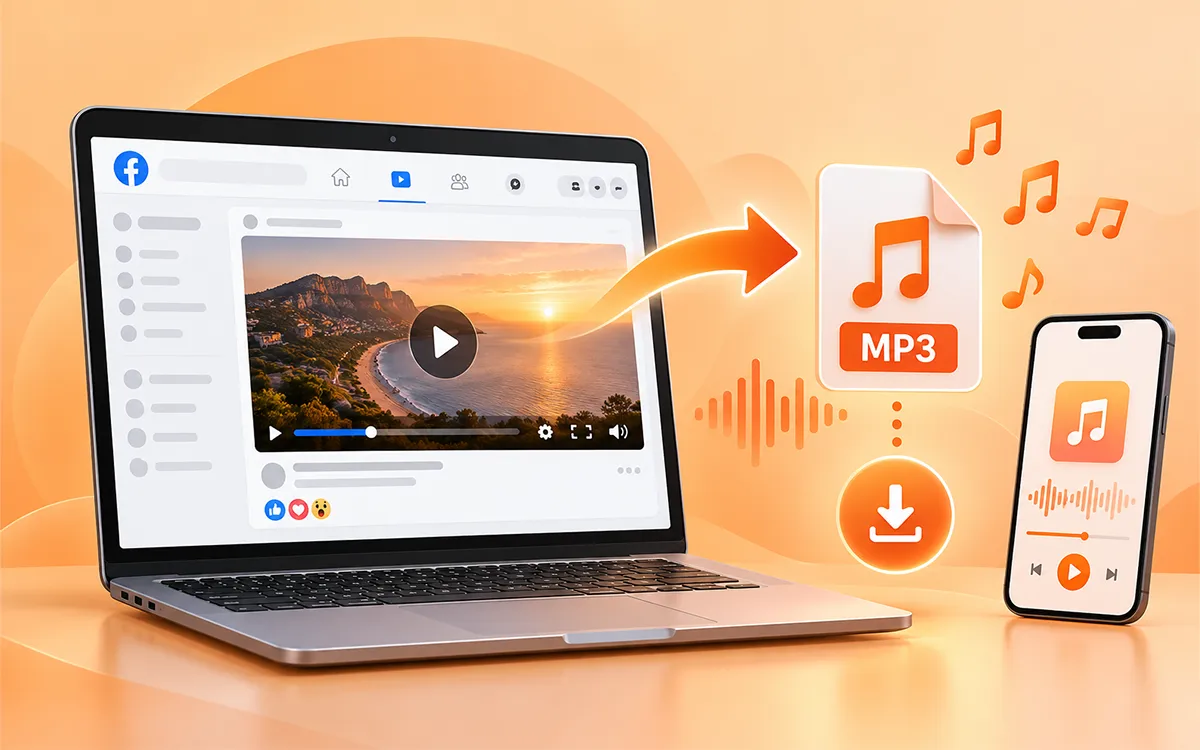
The platform of Facebook is full of content for listening and watching as well. You may have times when you want to save the audio but not the video. It can be your favorite song or a sound you want set as your ringtone. The good news? It is possible for you to save only audio on the device you are using. There are different ways to do so. VideoSaver is the most reliable and fast way to save the content on your device.
This guide will walk you through all available methods to save the MP3 file. For the complete guide on all content, check out our How to Download Facebook Videos.
What Does It Mean to Convert a Facebook Video to MP3?
It is a process that extracts the audio from the supported video and saves it as an MP3 file. A Facebook video contains both video and audio. The conversion process removes the visual portion, and only the audio track is saved to your device. This can be useful when you only want to listen to the content rather than watch it. You may want to convert:
-
Interviews into audio files
-
Educational videos into audio
-
Speeches and presentations in MP3
-
Podcast clips into audio
-
Music or other audio content you have permission to save
-
Facebook Live recordings into an audio format
Why Do You Need to Convert a Facebook Video to MP3?
There are multiple reasons that someone may want to download the audio of a video. Some of the reasons may include.
Smaller File Size
Audio files are much smaller than videos because they do not need to store visual information. This makes it more convenient to save and share.
Listen Without the Video
If the visual part of a Facebook video is not important to you, then an MP3 file lets you focus on the audio. You can listen to it when exercising, studying, or doing other activities.
Save Storage Space
If you keep an audio file instead of a video, it can reduce the amount of storage needed on your device.
Easy Playback
MP3 is a widely supported audio format and can be played on many phones, computers, and other devices.
Listen Offline
You can listen to the file once you download it on your device in MP3. You do not have to go back to Facebook every time when you want to access the same content.
Using VideoSaver: How to Convert a Facebook Video to MP3
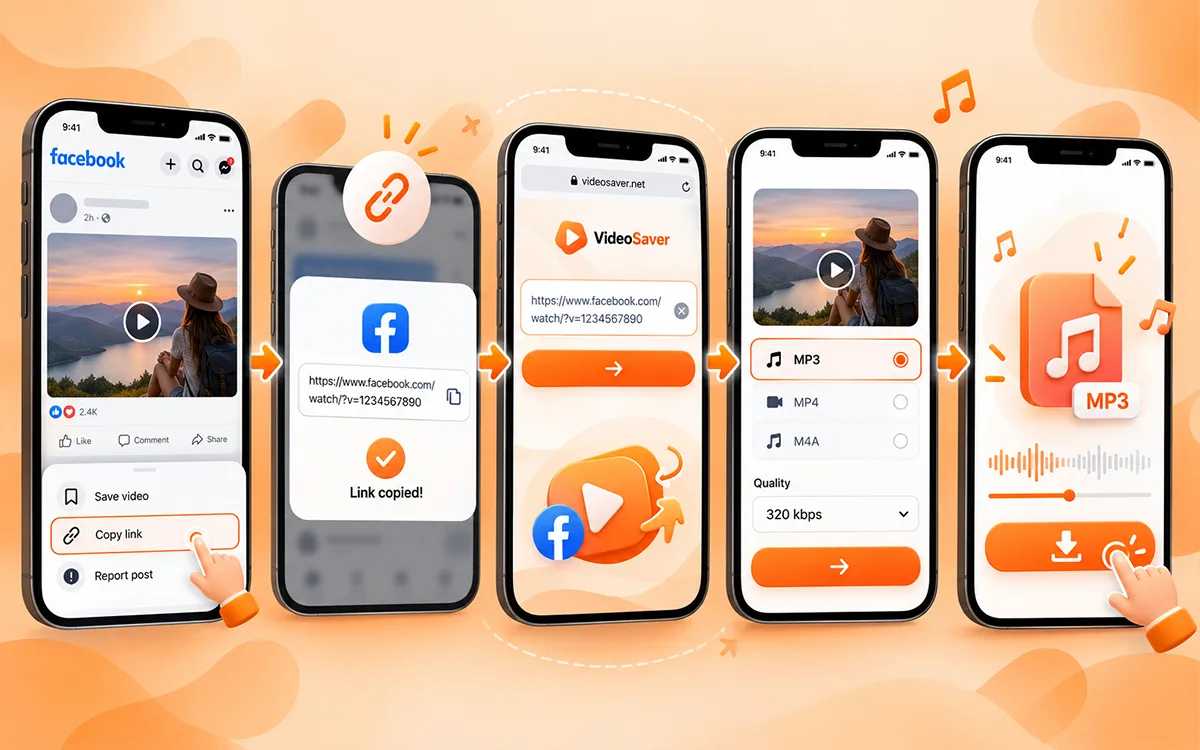
Looking for a fast and authentic tool to convert videos to MP3 files? VideoSaver is the top choice for users when security and credibility. It lets you download your content in an MP3 file from a video with no extra app or software to install. The process is simple and quick as follows.
-
First, open Facebook and find the audio you want to save.
-
Then copy the link to the video.
-
Moving forward, go to VideoSaver and paste the URL into the input field.
-
Now select the MP3 option and choose your preferred quality.
-
Finally, press the download icon to save the file on your device.
How to Convert a Facebook Video to MP3 on Android
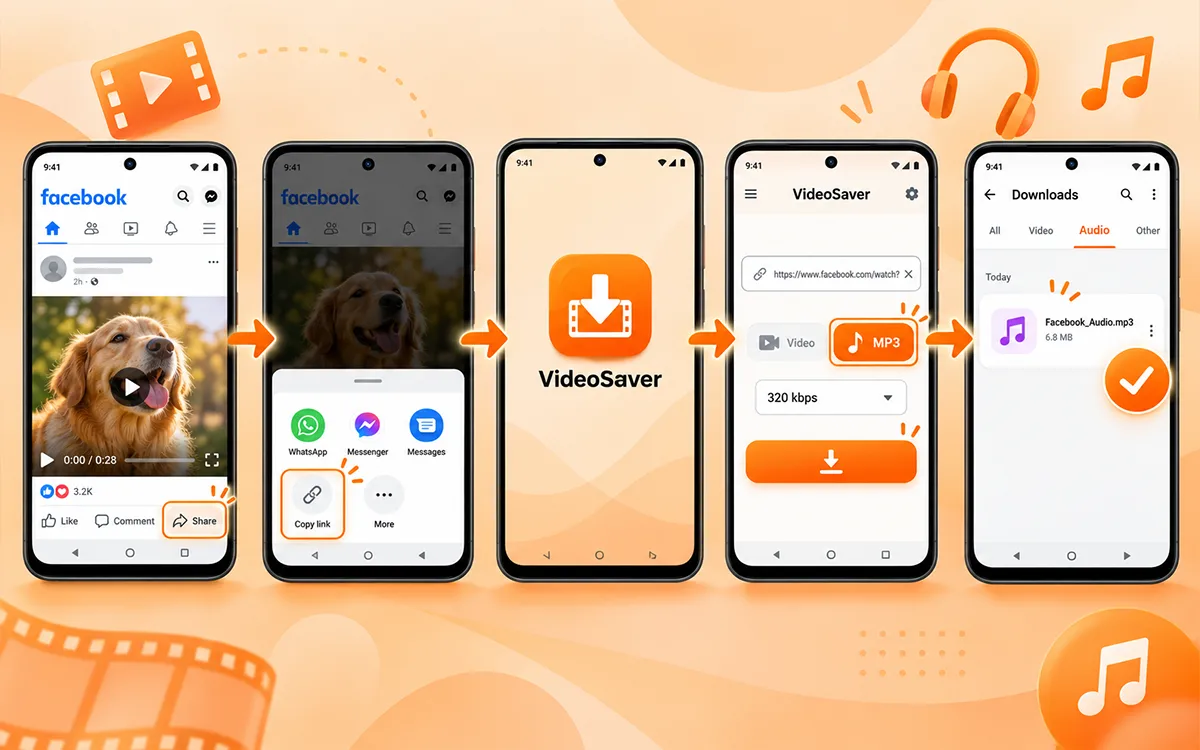
An Android app makes it easy for you to save the online content in seconds. You do not need any extension or go to your browser again and again. This method fits you best when you save online content very often.
-
You need to open the Facebook app or website.
-
Find the video you want to save.
-
Then press Share and copy the video link.
-
Now open the VideoSaver Android app and paste the copied URL into the box.
-
After you paste the link, select the MP3/audio option and choose the quality.
-
Finally, press the download icon to get the file on your Android phone.
-
The exact location of downloaded files can vary on the Android device.
How to Convert a Facebook Video to MP3 on iPhone
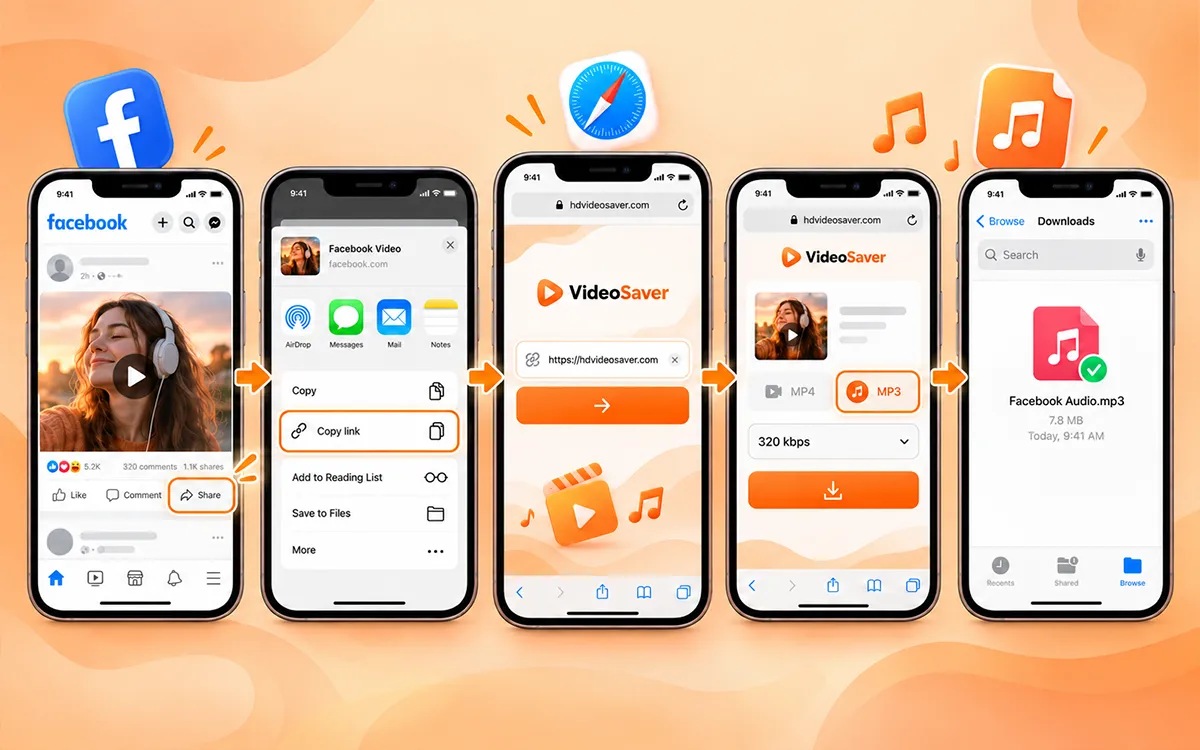
The same basic process works on an iPhone. You can choose the VideoSaver website on your browser to convert a Facebook video to an MP3 file.
-
Open Facebook and find the video.
-
Use the sharing options to copy its link.
-
Open VideoSaver in Safari or another supported browser.
-
Paste the Facebook video URL.
-
Select the MP3 option.
-
Choose the available quality.
-
Start the download.
-
Locate the downloaded file using your browser or the Files app.
If the browser asks you where to save the file, choose the location that is most convenient for you.
On PC, convert a Facebook video to MP3
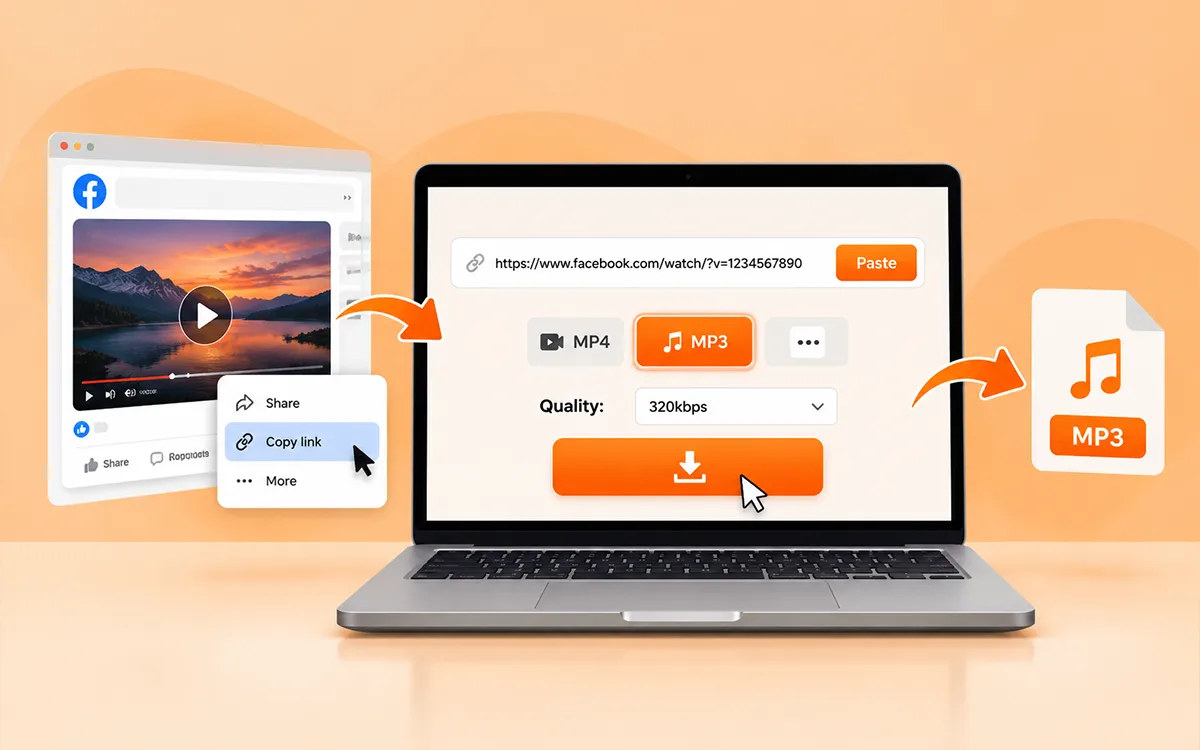
To download Facebook videos on a computer, you need to follow easy and simple steps. No technical skills are required.
First of all, copy the URL of the video you want to convert. Open VideoSaver in your web browser and paste the URL into the downloader. After the video is detected, select the MP3 option and choose the available quality. Start the download and wait for the file to be processed.
Because the process takes place through your browser, you do not need to install a separate desktop converter just to extract audio from a supported Facebook video.
Picking the Right VideoSaver Option
Three platforms of VideoSaver can be used for different devices and purposes. Below is the table to make the right decision.
|
VideoSaver Platforms |
Best For |
Key Features |
|
Web Downloader |
Facebook and Other Supported Platforms |
MP3/MP4, quality selection, playlist, no installation |
|
Android App |
Regular Mobile Downloads |
Video or audio downloads, offline player, media-saving feature |
|
Google Extension |
Convenient Browser Downloads for Supported Platforms |
Quick browser access and multiple downloads |
Which Format Should You Choose, MP3 or MP4?
The format you choose depends on the purpose of your download and your needs. If you want to keep only sound, then MP3 is the best choice.
|
MP3 |
MP4 |
|
Audio only |
Video and audio |
|
Usually smaller |
Usually bigger |
|
Best for listening |
Best for watching |
|
Convenient for audio content |
Preserves the visual content |
|
Works with many audio players |
Works with many video players |
Convert Facebook Reels to MP3
The audio may be available through the MP3 option if a Facebook Reel is supported by the downloader and is accessible. The process is similar:
-
Starting with copying the link to the reel.
-
Now open VideoSaver.
-
Paste the URL into the input field.
-
Then select the available MP3 audio option and download the file.
-
Availability can vary on the Reel and Facebook's current restrictions.
What If the Video Does Not Convert?
It happens sometimes that the Facebook video is not available for conversion. The problem is not always with the converter. Here are some reasons.
-
Maybe the URL is incorrect.
-
The video has been removed.
-
The video is private or restricted.
-
Temporary connection problem.
-
There can be any browser problem.
If you are still unable to figure out the problem, then do check: Facebook Video Downloader Not Working? Common Errors & Fixes for the complete guide.
What Is the Legality in Terms of Converting Facebook Videos to MP3?
The legality depends on the content, how you use it, and the laws that apply in your location. For example, converting your own Facebook video for personal use is different from downloading someone else's copyrighted content and redistributing it without permission. The safest way to convert content is when it is your own and publicly available. Or the content for which the owner has granted consent.
Before you download or reuse content, make sure you have the necessary rights or permission. Do not use downloaded content to ignore copyright. Always keep in mind not to violate the privacy of others or break the terms or applicable laws of Facebook.
Frequently Asked Questions
Is it possible to convert a Facebook video to MP3 for free?
Yes. There are plenty of online downloaders that allow you to download the content without spending a single penny.
Do I need to install any app?
No. You do not need to install any app to save the content online. You can use the VideoSaver website in your browser and download the audio.
Does an MP3 file contain video?
No. The MP3 file does not contain any video. A downloader saves an MP3 file after it extracts the sound from the video.
Do I need a Facebook account to use VideoSaver?
No. You do not need a Facebook account to use VideoSaver. All you need is the URL to the video whose audio you want to save.
How can I convert a Facebook video into MP3?
Follow the straightforward process to convert the video. Just copy the URL of the video and open VideoSaver’s Facebook downloader. Now paste the link there. Hit the download icon to save the audio after you choose the desired quality.
Is it possible to convert Facebook live videos to MP3?
Yes. Live video recording may be convertible to MP3 if it is publicly accessible and supported by the downloader.
Why should I use VideoSaver for conversion?
You should use VideoSaver because it is a reliable tool. It protects all of your data and keeps your privacy its top priority. It does not ask for your credentials or personal information to operate.
Does VideoSaver have an app?
Yes. VideoSaver gives the option of an Android app. Get the app from the Play Store to get started with downloading.
When converting to MP3, what audio quality should I choose?
What audio quality you get depends on the source of the video. It also depends on the options available when you save. If you download higher quality audio, then it results in larger files and vice versa.
Final Thoughts
The conversion of a Facebook video is useful when you want to keep just the audio. It does not need to be difficult to convert the file. You are able to download the content through a browser with VideoSaver. All you need to do is just copy the link and paste it into the downloader. You get a dedicated mobile app of VideoSaver for regular Android users. The Chrome extension offers easy access for various supported platforms.
But before you download anything, always respect the copyright. Make sure you have all the necessary rights to download and use the content from the creator. Do not install downloaders that ask for your personal information and details.